Convertir les photos HEIC de l’iPhone en JPG : guide simple (2026)
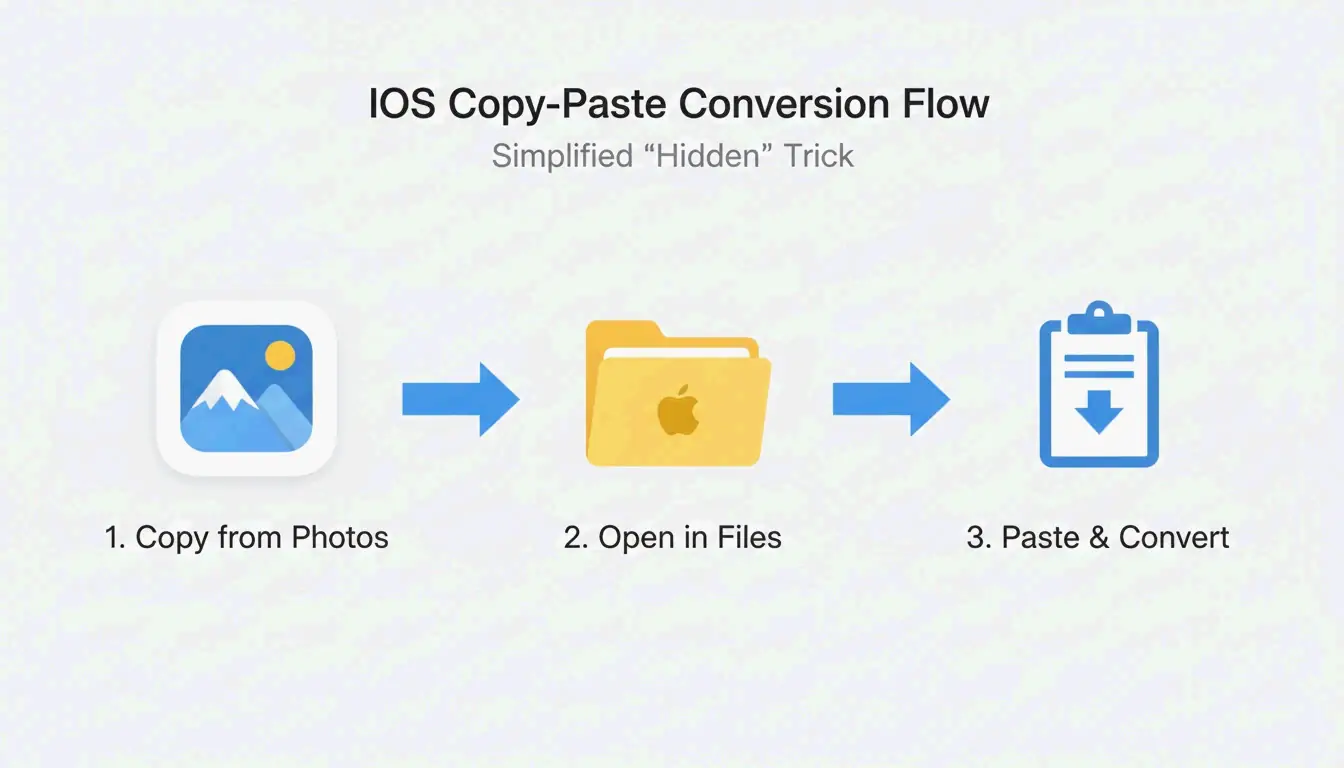
Pour convertir les photos HEIC de l’iPhone en JPG, utilisez l’app Fichiers d’iOS : copiez les photos depuis la Galerie, collez-les dans un dossier Fichiers — iOS les convertit automatiquement en JPEG. Sur Windows 11, utilisez l’app Photos et « Enregistrer sous » avec les extensions HEIF installées. Sur Mac, ouvrez dans Aperçu → Fichier → Exporter → JPEG.
Comparaison des méthodes de conversion
| Méthode | Plateforme | Traitement par lot | Coût | Confidentialité |
|---|---|---|---|---|
| App Fichiers d’iOS | iPhone/iPad | Oui (sélection multiple) | Gratuit | Entièrement hors ligne |
| Actions rapides d’iOS | iPhone/iPad | Par fichier | Gratuit | Entièrement hors ligne |
| Photos Windows 11 | Windows | Par fichier | Gratuit | Entièrement hors ligne |
| Aperçu sur Mac | macOS | Par fichier | Gratuit | Entièrement hors ligne |
| IrfanView | Windows | 1 000+ fichiers | Gratuit | Entièrement hors ligne |
| XnConvert | Win/Mac/Linux | 1 000+ fichiers | Gratuit | Entièrement hors ligne |
| ImageMagick | CLI (tous) | 10 000+ fichiers | Gratuit | Entièrement hors ligne |
| Outils WebAssembly | Navigateur | Variable | Gratuit | Côté client (aucun envoi) |
Méthode 1 : App Fichiers d’iOS (intégrée, hors ligne)
Selon MergeImages.net, l’app Fichiers convertit automatiquement le HEIC en JPEG lors du collage.
- Ouvrez l’app Photos → sélectionnez les images → appuyez sur Copier les photos
- Ouvrez l’app Fichiers → accédez à un dossier
- Appuyez longuement sur un espace vide → appuyez sur Coller
- Les fichiers apparaissent au format JPEG
Alternative : appuyez longuement sur un seul fichier → Actions rapides → Convertir l’image → JPEG
Méthode 2 : Windows 11
Prérequis
| Extension | Coût | Objectif |
|---|---|---|
| Extensions d’image HEIF | Gratuit | Aperçu des vignettes + affichage de base |
| Extensions vidéo HEVC | 0,99 $ | Prise en charge complète du codec |
Installez les deux depuis le Microsoft Store pour bénéficier de la conversion native par clic droit.
Étapes
- Ouvrez le fichier HEIC dans l’app Photos
- Cliquez sur ⋮ (trois points) → Enregistrer sous
- Sélectionnez le format JPEG → Enregistrer
Méthode 3 : Aperçu sur Mac
Selon PDF Guru :
- Ouvrez les fichiers HEIC dans Aperçu
- Fichier → Exporter
- Sélectionnez JPEG dans le menu déroulant des formats
- Ajustez le curseur de qualité (équilibrez taille du fichier et netteté)
- Enregistrer
Confidentialité : conversion côté client vs. côté serveur
| Modèle | Fonctionnement | Vos données |
|---|---|---|
| Côté client (WebAssembly) | La conversion s’exécute dans la mémoire du navigateur | Ne quitte jamais votre appareil |
| Côté serveur | Les photos sont envoyées sur un serveur distant | Stockées temporairement sur un serveur tiers |
Selon Ahmer Arain, les outils utilisant Canvas API + WebAssembly (comme ConvertifyHub, Freetoolonline) traitent tout localement.
Liste de contrôle pour la confidentialité
| Fonctionnalité | Ce qu’il faut rechercher |
|---|---|
| Label de traitement | “Sans envoi,” “Hors ligne,” “Privé” |
| Vitesse | Les outils locaux sont plus rapides (pas d’attente d’envoi) |
| Contrôle EXIF | Option pour conserver ou supprimer les métadonnées GPS/horodatage |
HEIC vs. JPG : comparaison technique
| Propriété | HEIC | JPG |
|---|---|---|
| Efficacité de compression | 50 % plus efficace | Référence de base |
| Profondeur de couleur | 16 bits | 8 bits |
| Prise en charge HDR | Oui | Non |
| Live Photos | Conservées | Perdues |
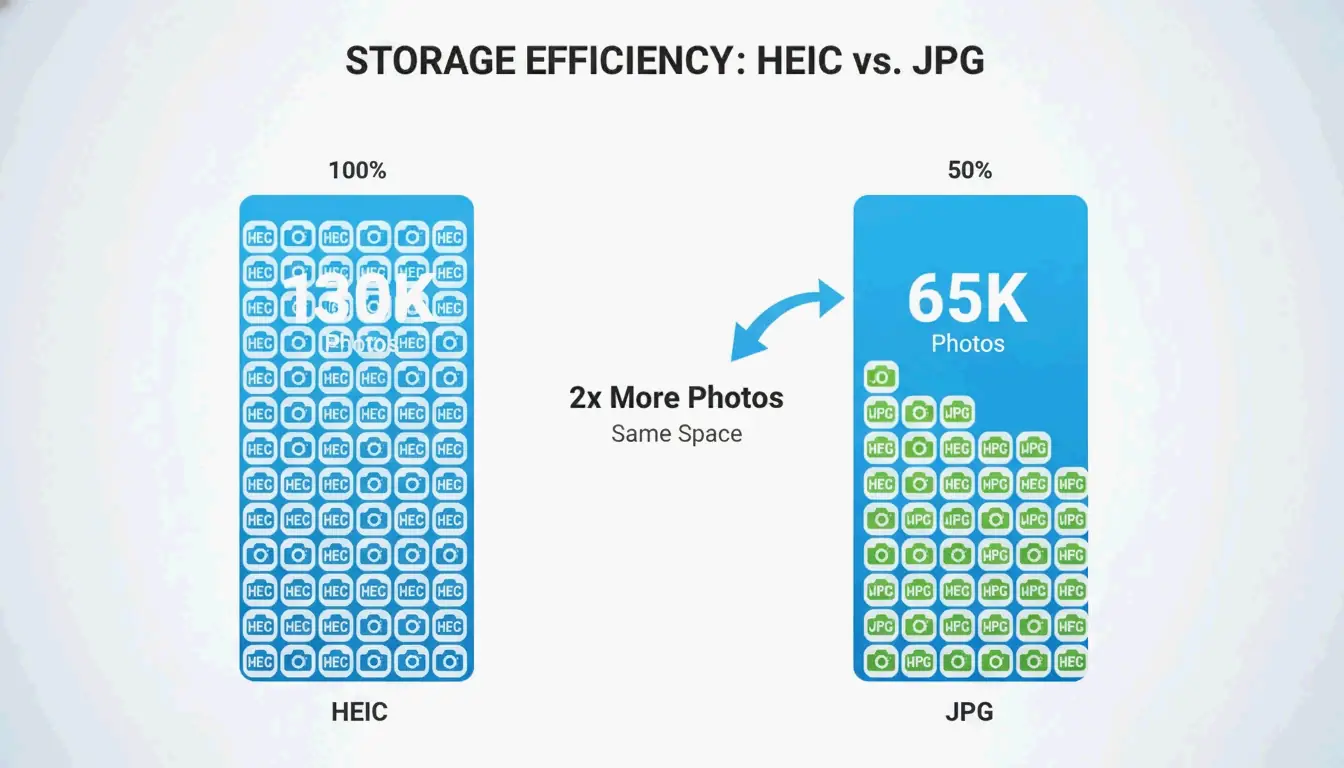
| Capacité iPhone 256 Go | ~130 000 photos | ~65 000 photos |
| Compatibilité universelle | Limitée | Universelle |
Selon FyleTools, le HEIC est 50 % plus efficace — un iPhone de 256 Go peut stocker environ 130 000 photos en HEIC contre seulement 65 000 en JPEG à qualité équivalente.
Outils de traitement par lot pour les grandes bibliothèques
| Outil | Plateforme | Lot maximal | Idéal pour |
|---|---|---|---|
| IrfanView | Windows | 1 000+ | Rapidité selon PicTomo |
| XnConvert | Win/Mac/Linux | 1 000+ | Préservation des données EXIF entre les types de fichiers |
| ImageMagick | CLI (tous) | 10 000+ | Automatisation par script |
Paramètres de l’appareil photo iPhone : HEIC vs. Compatible
| Paramètre | Format | Stockage | Compatibilité |
|---|---|---|---|
| Haute efficacité (par défaut) | HEIC | 50 % d’espace en moins | Écosystème Apple |
| Le plus compatible | JPG | Plus d’espace | Universel |
Réglages → Appareil photo → Formats pour changer de mode.
Recommandation : Gardez le mode « Haute efficacité » pour l’usage quotidien. Convertissez uniquement certains albums lorsque vous partagez avec des utilisateurs non-Apple ou pour l’impression.
Conclusion
Utilisez l’app Fichiers d’iOS pour des conversions rapides hors ligne. Utilisez IrfanView ou XnConvert pour les traitements par lot. Pour la confidentialité, privilégiez les outils de navigateur basés sur WebAssembly. Conservez le HEIC pour économiser de l’espace de stockage ; convertissez en JPG uniquement lorsque la compatibilité l’exige.
FAQ
La conversion de HEIC en JPG entraîne-t-elle une perte de qualité ?
Oui — le réencodage est avec perte. Mais à plus de 90 % de qualité, la différence est invisible. Selon Freetoolonline, une qualité de 95 produit un fichier visuellement identique environ 30 % plus volumineux que le HEIC.
Pourquoi Windows 11 affiche-t-il des vignettes HEIC vides ?
Il manque les Extensions d’image HEIF (gratuites) ou les Extensions vidéo HEVC (0,99 $) du Microsoft Store. Installez les deux pour activer les vignettes natives sans conversion.
Puis-je convertir du HEIC en JPG sans envoyer mes fichiers ?
Oui. L’app Fichiers d’iOS fonctionne entièrement hors ligne. Sur ordinateur, utilisez des outils basés sur WebAssembly qui traitent les images dans la mémoire du navigateur — les images ne quittent jamais votre appareil.
SectoJoy
• Indie Hacker & DeveloperI'm an indie hacker building iOS and web applications, with a focus on creating practical SaaS products. I specialize in AI SEO, constantly exploring how intelligent technologies can drive sustainable growth and efficiency.