HTML to JPG (html-to-jpg): Complete Conversion Guide
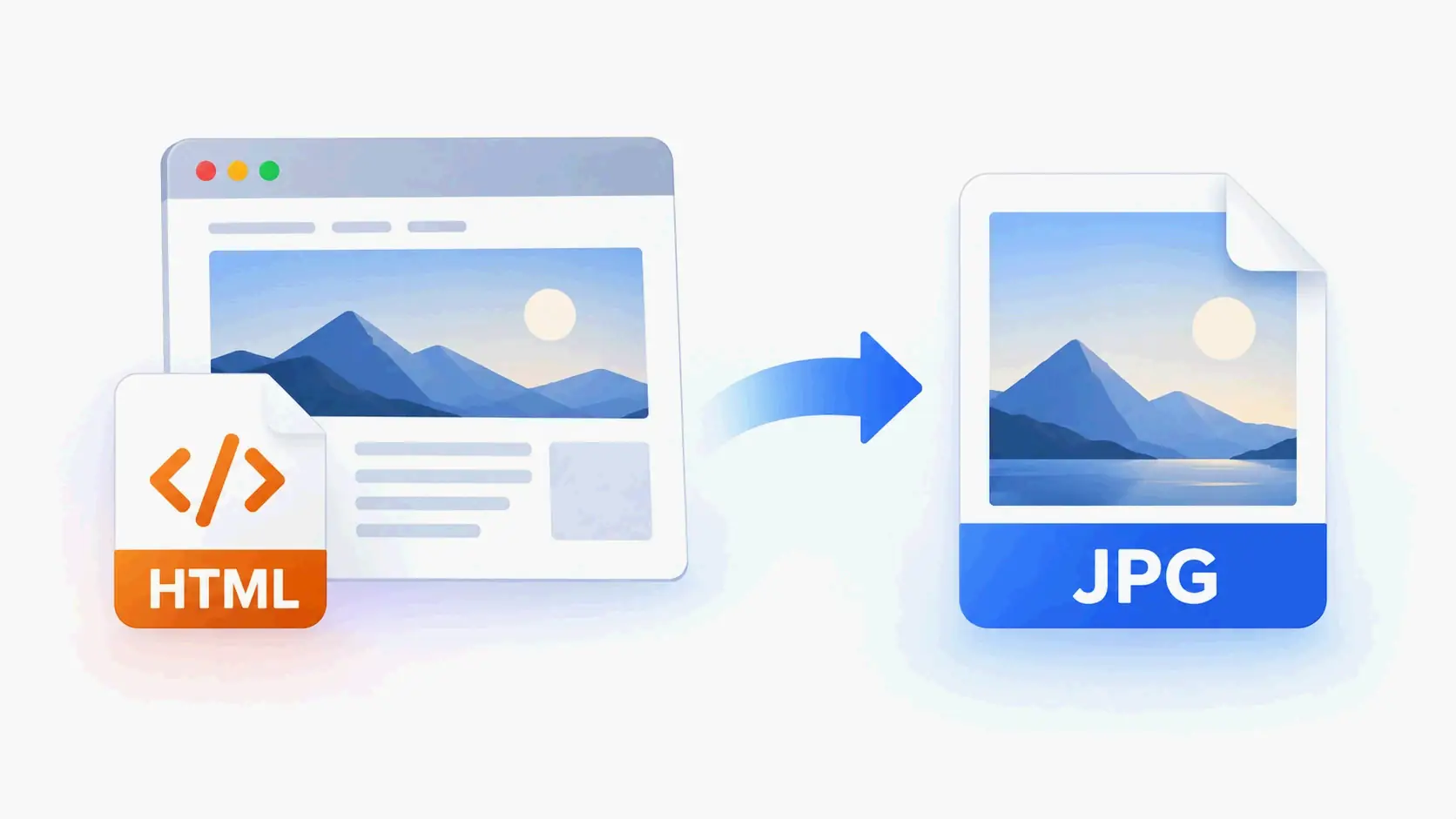
To convert HTML to JPG (html-to-jpg), upload your file or enter a URL into a free online converter such as CoolUtils or Aspose. The tool renders the page and saves it as a JPG snapshot. For batch or automated work, desktop tools or command-line APIs are the better path.
How to Convert HTML to JPG: Step-by-Step
The fastest way is to use a browser-based converter. You upload an HTML file or paste a URL, pick JPG as the output format, and download the rendered image. Most free tools work this way, though file size limits, quality controls, and deletion policies vary.
Using an Online Converter (CoolUtils or Aspose)
CoolUtils and Aspose both offer free online HTML to JPG converters that run right in the browser. No installation is needed.
CoolUtils workflow
- Open the CoolUtils online HTML to JPG page.
- Upload an HTML, HTM, XHTML, MHTML, or MHT file. The converter accepts files up to 50 MB.
- Choose JPG or JPEG in the output format list.
- Add optional header or footer text if you need it.
- Click Download Converted File to save the JPG snapshot.
According to CoolUtils, the service processes uploads over HTTPS/TLS and automatically deletes both input and output files after conversion. The same page reports that CoolUtils has converted 157,328,305 files totaling 4,801 TB.
Aspose workflow
- Open the free Aspose HTML to JPG converter.
- Click the file drop area to upload or drag and drop an HTML file. You can also enter a URL.
- Click Convert to render the page as a JPG.
- Download the result from the link that appears.
Aspose’s free tier is more limited. According to Aspose, free users can process 5 files per day, with a 5 MB total size limit and 2 operations daily. Files are automatically deleted from Aspose servers after 24 hours.
Converting Multiple Files with a Desktop Tool
Online converters get frustrating once you have many HTML files. Desktop software like Total HTML Converter can process entire folders in a single run and keeps everything on your local machine.
The basic desktop workflow is:
- Add a folder of HTML, HTM, or MHT files.
- Select JPG as the output format.
- Set JPEG quality and output dimensions if needed.
- Run the batch conversion, then grab the JPG files from the output folder.
CoolUtils says Total HTML Converter can convert hundreds of files in three clicks, works offline, and includes batch conversion, JavaScript toggles, CSS rendering, and JPEG quality control.
HTML to JPG Conversion Methods Compared
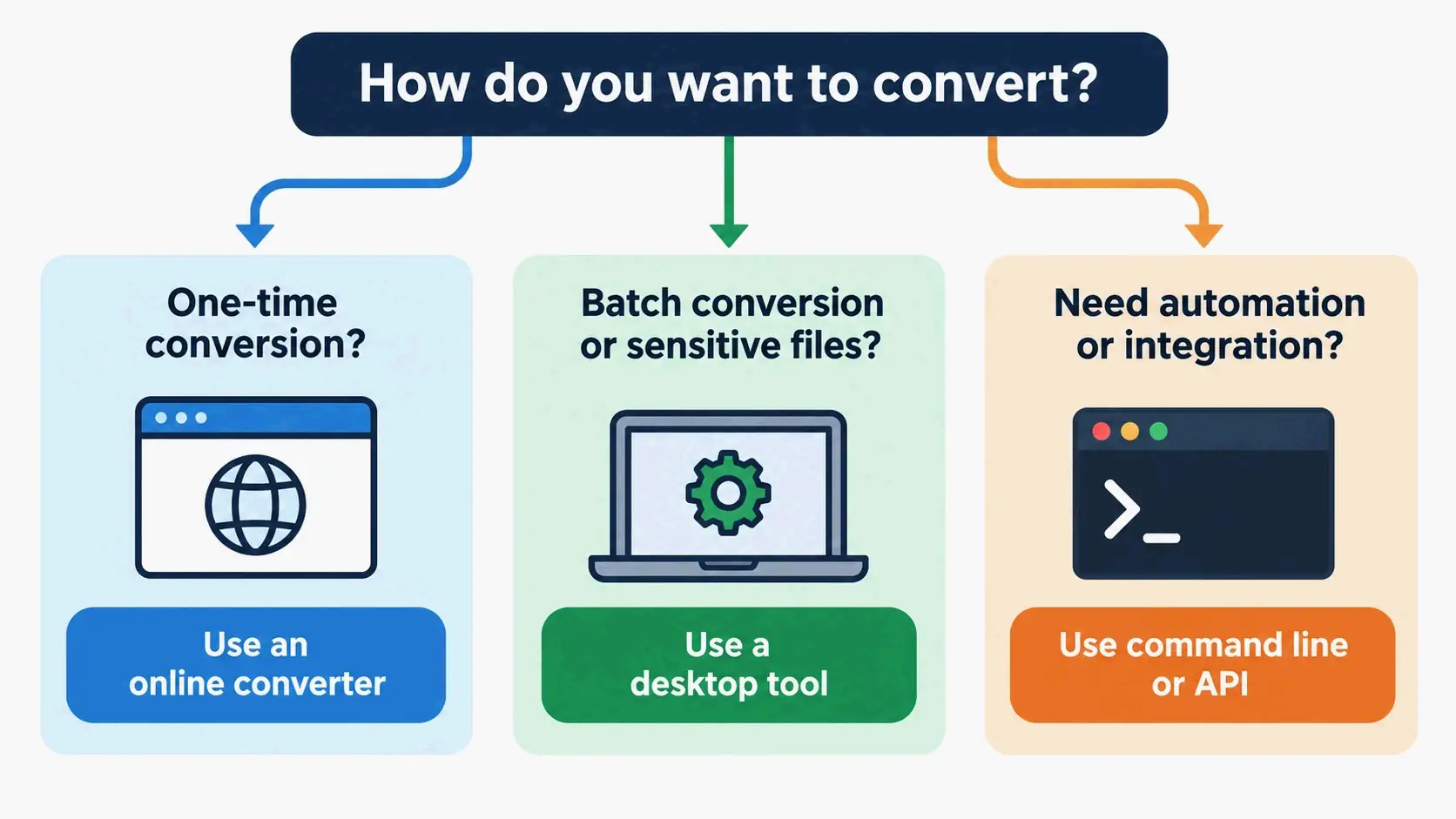
There are five practical ways to convert HTML to JPG: online converters, desktop software, command-line tools, APIs, and headless browsers. They differ in privacy, batch capability, file size limits, and how well they fit automation. The right choice depends on how many files you handle, where the files live, and whether the workflow must run unattended.
Online Converters: Free, Fast, and Limited
Online HTML to JPG converters work well for one-off conversions and quick previews. You don’t need to install anything, and they work from any device with a browser.
The main trade-offs are file size limits and privacy. CoolUtils accepts files up to 50 MB and automatically deletes input and output files after conversion, according to CoolUtils. Aspose is stricter: free accounts can handle 5 files, 5 MB total size, and 2 operations per day, with files deleted after 24 hours, according to Aspose.
Online tools also tend to process one file at a time. CoolUtils notes that its online MHTML to JPG converter handles a single file at a time, while batch conversion requires the desktop version. If you only need occasional snapshots or want to test a workflow, an online converter is the easiest place to start.
Desktop Software: Batch Processing and Total HTML Converter
Desktop software removes the file size, privacy, and volume limits that come with online tools. CoolUtils sells Total HTML Converter as the desktop option, with a one-time price of $59.90 for a lifetime license and commercial use.
Key capabilities include:
- Batch conversion of HTML, HTM, MHT, and XHTML files
- Full CSS rendering with controls to enable or disable JavaScript
- Fit-to-page layout for consistent output
- Adjustable JPEG quality to balance file size and image fidelity
- Output to JPG, PNG, TIFF, PDF, DOC, XLS, and other formats
- Watermark, page counter, and date options for output files
- Command-line execution and an SDK for integration
Desktop conversion keeps files on your own machine, which matters for sensitive documents. It also removes the 50 MB online file limit: if an HTML file or web archive exceeds 50 MB, the desktop tool can still process it.
Command-Line Tools and APIs for Automation
Automated workflows need a path that runs without manual uploads or clicking through a GUI. The two main options are local command-line converters and cloud APIs.
Total HTML Converter X is CoolUtils’ server-oriented command-line tool. It converts HTML files and live URLs to JPG from cmd.exe or PowerShell using HTMLConverter.exe. A basic batch command looks like this:
HTMLConverter.exe C:\Pages\*.html C:\Output\ -c JPEG -ImgQuality 90 -ImgWidth 1024
This renders every HTML file in the source folder to a JPG with the same base name. Flags such as -ImgQuality, -ImgWidth, and -combine control JPEG quality, output dimensions, and full-page rendering. The tool can run from a .bat file, Windows Task Scheduler, or an ActiveX/COM interface from .NET, PHP, Python, and other environments.
For cloud-based integration, HTML/CSS to Image offers an API that returns PNG, JPG, WebP, or PDF output from HTML/CSS, URLs, or reusable templates. The documentation says the service has generated more than 100 million images and has been in production since 2018. Companies including Uber, HubSpot, Airtable, monday.com, Yamaha, Wayfair, PlanetScale, Expensify, and Coldwell Banker use it.
Headless browsers like Puppeteer or Playwright can also render HTML to JPG, but they bring maintenance and resource overhead. Marek Dvorak, Senior Backend Engineer, puts it this way: “We replaced a Puppeteer-based screenshot pipeline with Total HTML Converter X about a year ago. The Puppeteer setup needed constant babysitting after Chrome updates and consumed ~400 MB of RAM per worker. The CoolUtils command line takes a fraction of the resources, never breaks on updates, and produces consistent JPG output. We render about 40,000 product pages a night without a single failure.”
For compliance snapshots, Janelle Foster, Compliance Manager, describes a scripted approach: “I wrote a small .bat script that pulls a list of URLs from a CSV and runs HTMLConverter.exe against each one, naming the output JPGs with the date. It runs on a Windows Server 2019 box, uses a few percent of CPU, and produces clean, identical-looking screenshots regardless of when the script runs.”
JPEG Quality Settings and Output Control
JPG is a lossy format, so the quality setting controls how much compression gets applied. That directly affects file size and visual fidelity. Lower values create smaller files but can introduce visible artifacts; higher values preserve more detail but produce larger files.
CoolUtils recommends values between 85 and 92 as the sweet spot for web use. In Total HTML Converter X, the -ImgQuality flag accepts any value from 1 to 100. The -ImgWidth and -ImgHeight flags set output dimensions in pixels, and -combine renders the whole document as one tall JPG instead of splitting it into pages.
Desktop Total HTML Converter also exposes JPEG quality as a user-facing option. CoolUtils notes that when converting HTML to JPEG, users can “set the desired quality of the JPEG image to compromise the file size.” Online converters usually offer fixed or limited quality settings, so if you need precise control over output size and sharpness, a desktop or command-line tool is the more reliable route.
Method selection at a glance
| Use case | Recommended path |
|---|---|
| One-off conversion or quick preview | Free online converter such as CoolUtils or Aspose |
| Batch conversion of local files | Desktop Total HTML Converter |
| Sensitive or legal documents | Desktop or command-line tool that keeps files local |
| Automated server pipeline without a browser | Total HTML Converter X command line |
| Cloud-based integration or template-driven generation | HTML/CSS to Image API |
| JavaScript-heavy single-page apps | Headless browser or Chrome-rendering API |
HTML, HTM, MHTML, MHT: What’s the Difference?
HTML to JPG conversion often involves several related file extensions. The input type affects which tool can handle the file and how the rendered output looks.
HTML vs HTM: Same Language, Different Extension
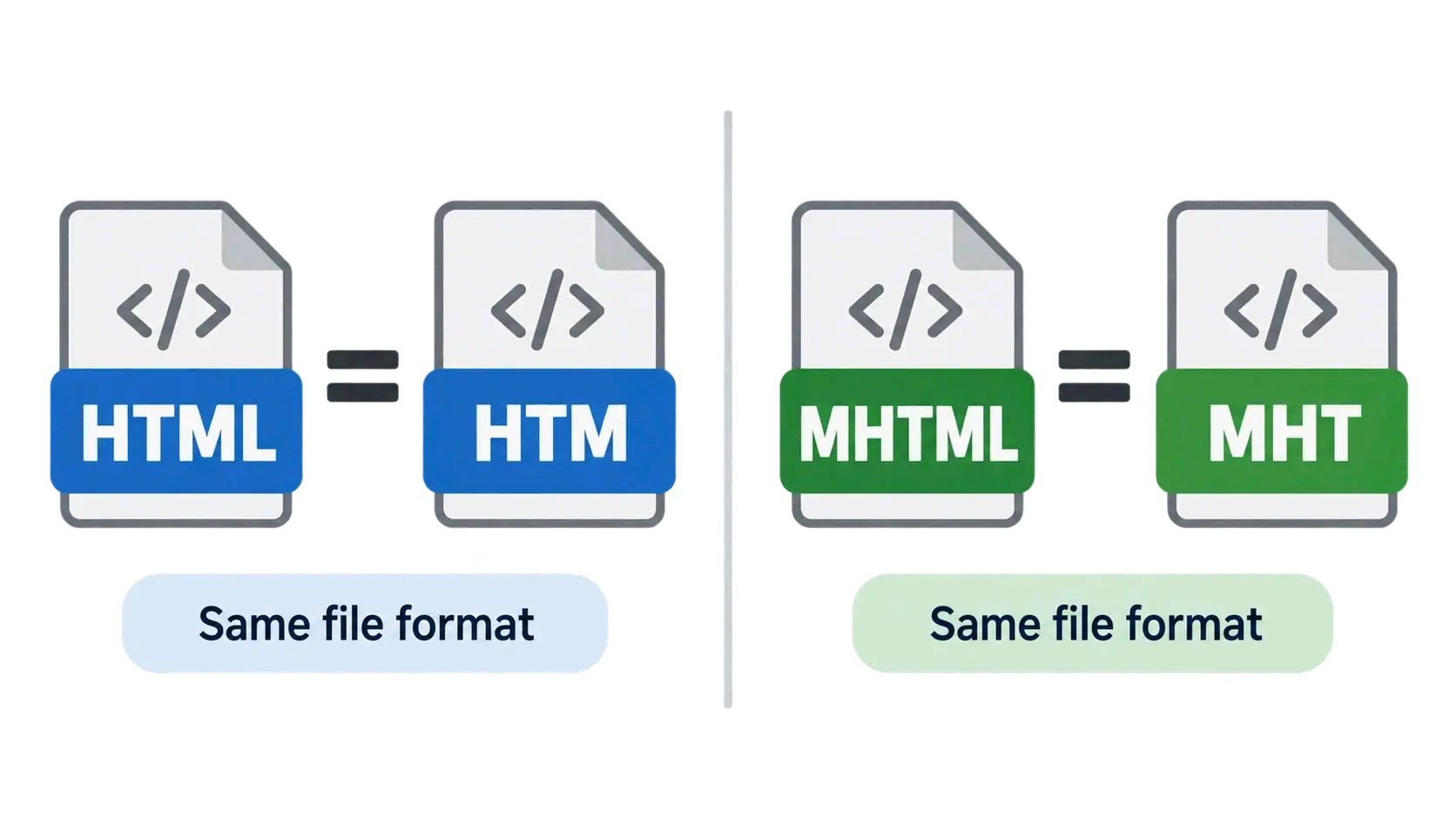
HTML and HTM are the same markup language. The .htm extension is the older three-character form that came from the DOS 8.3 filename limit, which allowed only three characters after the dot. Modern systems treat .htm and .html files the same way, and browsers open both natively.
CoolUtils describes HTM as “functionally identical to HTML” and notes that the .htm extension is often used for compatibility with legacy systems and older operating systems. When you convert to JPG, choosing HTML or HTM makes no difference to the process or the result.
MHT vs MHTML: One Archive Format, Two Extensions
MHT and MHTML are also the same format, but they are not the same thing as a plain HTML page. MHTML, short for MIME HTML, is defined by RFC 2557. It bundles a complete web page into a single file using MIME multipart encoding, combining HTML markup, CSS, JavaScript, and embedded images.
The only difference between MHT and MHTML is the extension. .mht is the older three-character form used by Internet Explorer, while .mhtml is the longer, modern form used by Edge and some browser extensions. CoolUtils states that both extensions implement RFC 2557 MIME encapsulation and that its converter processes them identically.
Browser Support and Security Implications
MHTML support has shrunk in modern browsers. According to CoolUtils, Chrome removed native MHTML support in 2020 and Firefox removed it in 2021, both citing security vulnerabilities. The worry is that MHTML files can embed active scripts that execute in privileged contexts, creating an attack vector for malicious .mht or .mhtml attachments.
Edge still supports MHT natively, but on many non-Windows systems the files cannot be opened reliably. Converting MHTML or MHT to JPG sidesteps the compatibility issue entirely: you get a static image that requires no browser or archive viewer.
When choosing an input type, use HTML or HTM if you have raw markup or a saved page in plain markup form. Use MHTML or MHT if the file was saved as a web archive from Internet Explorer, Edge, or a browser extension, because those files include embedded resources that an ordinary HTML file may reference externally.
Full-Page vs Viewport Capture: What Gets Captured?
Capture behavior varies by tool and sometimes by input type. Some converters capture only the visible viewport, while others render the full page height from top to bottom.
The difference matters for long pages. A viewport-only capture shows only the part visible without scrolling, so content below the fold can get cut off. A full-page capture stitches the entire document height into a single JPG, which works better for archived articles, complete receipts, and legal notices.
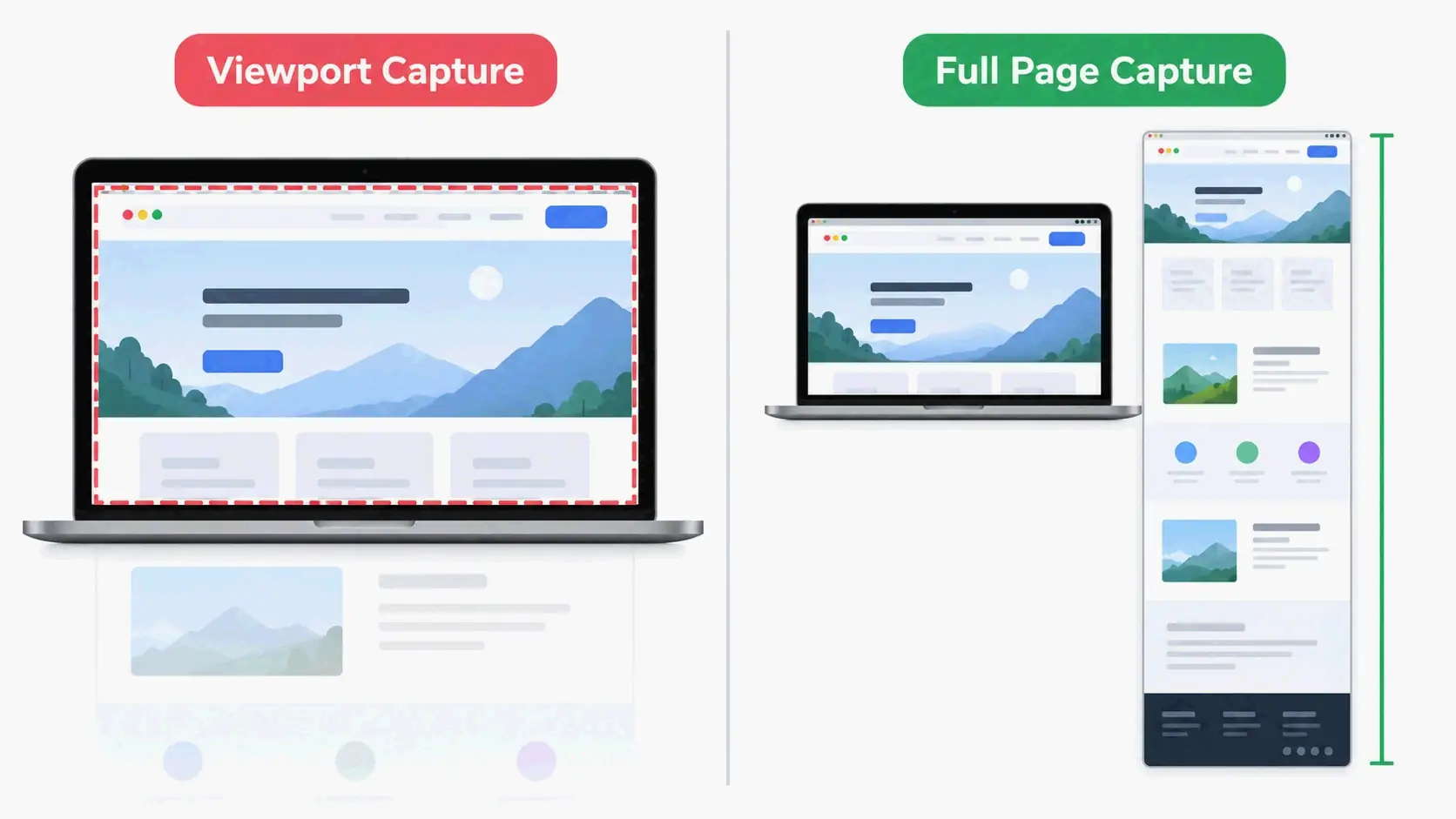
CoolUtils illustrates both behaviors on its own pages. For MHTML and MHT online conversion, CoolUtils says the converter renders the complete document from top to bottom and captures the entire page height as a single JPG. For HTM online conversion, though, CoolUtils says the online converter captures the initial viewport area at a standard desktop viewport width, while the desktop Total HTML Converter offers a full-page rendering mode.
So don’t assume every “HTML to JPG” tool behaves the same way. Before converting a long page, check for a “full-page,” “entire page,” or “combine” option. If the online converter only captures the viewport, use a desktop or command-line tool instead.
Output resolution also depends on the rendering engine and viewport width. CoolUtils notes that its online HTM converter renders at a 1280-pixel viewport width at screen resolution, while the desktop version lets you set custom viewport width and DPI for higher-resolution output.
JavaScript Rendering and Dynamic Web Pages
Many lightweight HTML to JPG converters do not execute JavaScript. If a page loads content dynamically through scripts, that content may be missing from the resulting JPG. CoolUtils states plainly for its online MHTML converter that “dynamic JavaScript is not executed; the page is captured in its loaded state.”
You’ll notice this limitation most with single-page applications and other JavaScript-heavy sites. A renderer that stops after loading the initial HTML will capture placeholders, empty containers, or loading spinners instead of the final rendered content.
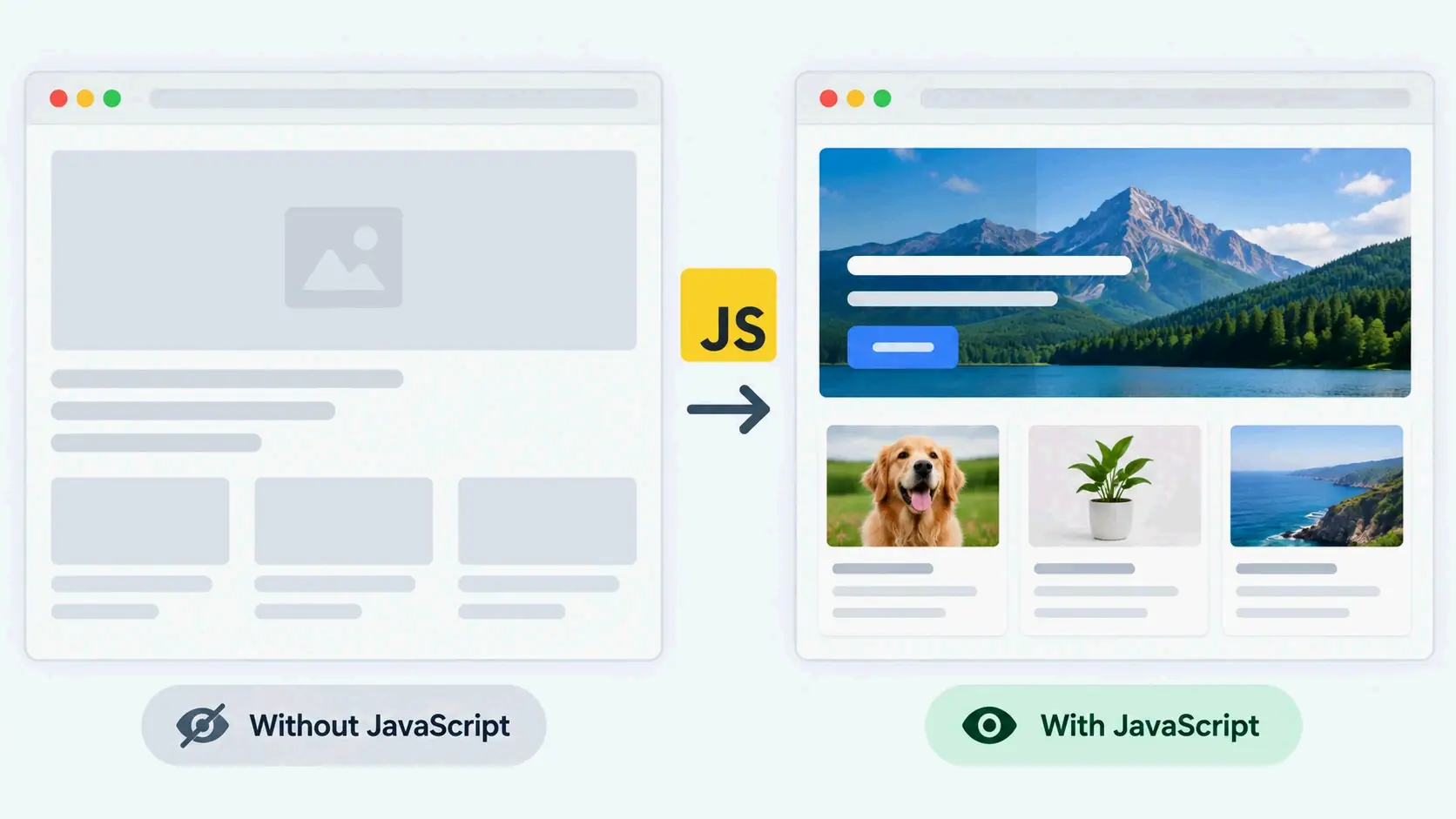
For such pages, you have three options:
- Use a headless browser like Puppeteer or Playwright, which executes JavaScript and renders the page the way a real browser would.
- Use an API that renders in a browser engine. The HTML/CSS to Image API documentation notes that its service renders HTML/CSS in Google Chrome, which means JavaScript can run before capture.
- Use a converter with a JavaScript enable/disable option, such as CoolUtils Total HTML Converter, which lets users enable or disable JavaScript and stop slow scripts.
The trade-off is resource and maintenance cost. Headless browsers give the most faithful rendering but require careful sandboxing and can break after browser updates. As Marek Dvorak, Senior Backend Engineer, put it, a Puppeteer-based pipeline “needed constant babysitting after Chrome updates and consumed ~400 MB of RAM per worker,” which led his team to replace it with Total HTML Converter X for 40,000 nightly renders.
Which Tools Execute JavaScript?
Not all converters execute JavaScript, and this isn’t always obvious from a product page. In general:
- Lightweight online converters often render the page in its loaded state without running dynamic scripts.
- Desktop CoolUtils Total HTML Converter offers an option to enable or disable JavaScript and can stop slow scripts.
- The HTML/CSS to Image API renders in Google Chrome, so JavaScript can be part of the capture.
- Headless browser automation such as Puppeteer or Playwright executes JavaScript by default.
If your page needs JavaScript to display visible content, check the tool’s rendering engine before relying on the output.
Privacy and Security: What Happens to Your Files?
Online converters require uploading files to a third-party server, which raises privacy considerations no matter what security claims the provider makes.
CoolUtils describes its online conversion as encrypted in transit with HTTPS/TLS and processed in data centers with multi-factor access control. It also says both input and output files are deleted automatically from its servers after conversion, and that files are never read, shared, or repurposed. Aspose states that uploaded files are automatically deleted after 24 hours and that users can delete them immediately.
Even with these policies, online conversion isn’t right for every document. For sensitive legal, compliance, or internal business content, local processing is safer. Desktop software like Total HTML Converter and command-line tools like Total HTML Converter X keep files on the local machine. CoolUtils emphasizes this point in its desktop comparison: files “never leave your machine.”
File size limits also overlap with privacy and workability. CoolUtils online supports files up to 50 MB, while Aspose free users are limited to 5 MB total and 2 operations per day. Files that exceed online limits must be converted locally, which is often the better privacy choice anyway.
Use Cases: Who Needs HTML to JPG Conversion?
HTML to JPG conversion serves several different groups, each with its own needs for volume, privacy, and automation.
Casual users need quick, one-off conversions for sharing or embedding. A free online converter like CoolUtils or Aspose is usually enough, with no installation or signup required.
Compliance and legal teams need archived snapshots with timestamps and consistent rendering. Janelle Foster, Compliance Manager, uses a .bat script to pull URLs from a CSV and run HTMLConverter.exe against each one, naming the output JPGs with the date. The script runs on a local Windows server and produces “clean, identical-looking screenshots regardless of when the script runs.”
E-commerce and development teams often need batch product page rendering or CMS thumbnail generation. The same command-line approach can run nightly over a catalog. Marek Dvorak’s team renders about 40,000 product pages a night with Total HTML Converter X after moving away from Puppeteer.
Students, researchers, and content creators usually want to save web content as images for presentations or documentation. CoolUtils user reviews describe converting market research pages into visual summaries, archiving competitor product pages as a visual timeline for PowerPoint reports, and generating JPG screenshots for legal documents without needing technical viewers.
Across these use cases, the pattern stays the same: online converters handle occasional needs, while batch, legal, and production workflows benefit from desktop or command-line tools that keep files local and run without manual interaction.
Conclusion
HTML to JPG conversion can be as simple as uploading a file to a free online converter, but the right method depends on volume, privacy needs, and automation requirements. For one-off tasks, start with CoolUtils or Aspose and download the rendered snapshot in seconds. For batch jobs, sensitive files, or unattended workflows, choose a desktop tool like Total HTML Converter or a command-line solution like Total HTML Converter X. Matching the tool to the use case helps you avoid file-size limits, privacy exposure, and manual overhead.
FAQ
What is the difference between MHT and MHTML files?
MHT and MHTML are the same web archive format. The only difference is the file extension: .mht is the older three-character form from DOS 8.3 filename limits, while .mhtml is the modern four-character extension. Both implement RFC 2557 MIME encapsulation of HTML, and converters process them identically.
Why can’t Chrome open MHTML or MHT files?
Chrome removed native MHTML support in 2020–2021 because of security vulnerabilities tied to embedded active scripts. Firefox also removed support in 2021. Edge still opens MHT natively. To view the content without a compatible browser, convert the MHTML or MHT file to HTML or JPG.
Will the JPG capture the full page or just the visible viewport area?
It depends on the tool’s settings. Some converters capture only the visible viewport, while others render the full page height. Before converting a long page, check for a “full-page,” “entire page,” or “combine” option, or use a desktop tool with full-page rendering.
Can I batch convert multiple HTML files to JPG in one run?
Yes. Desktop tools like CoolUtils Total HTML Converter support batch processing and can convert entire folders in a single run. Online converters typically handle one file at a time or impose strict daily limits, so they aren’t practical for large batch jobs.
Is online HTML to JPG conversion safe for sensitive or legal documents?
Online tools upload files to third-party servers, which creates privacy risk even when deletion policies exist. For sensitive documents, use a desktop tool or command-line script that keeps files local. CoolUtils and Aspose both publish deletion policies, but sensitive work is safer offline.
What resolution and JPEG quality should I expect from the output?
Output resolution depends on the rendering engine and the page’s dimensions. JPEG quality is often adjustable from 1 to 100; 85–92 is the typical sweet spot for web use. Higher values preserve more detail but create larger files.
SectoJoy
• 独立开发者 & 技术博主我是一名独立开发者,专注于构建 iOS 和 Web 应用程序,致力于打造实用的 SaaS 产品。我擅长 AI SEO,不断探索智能技术如何推动可持续增长和效率提升。