How to Embed Images into HTML Code Base64 Quickly (2026)
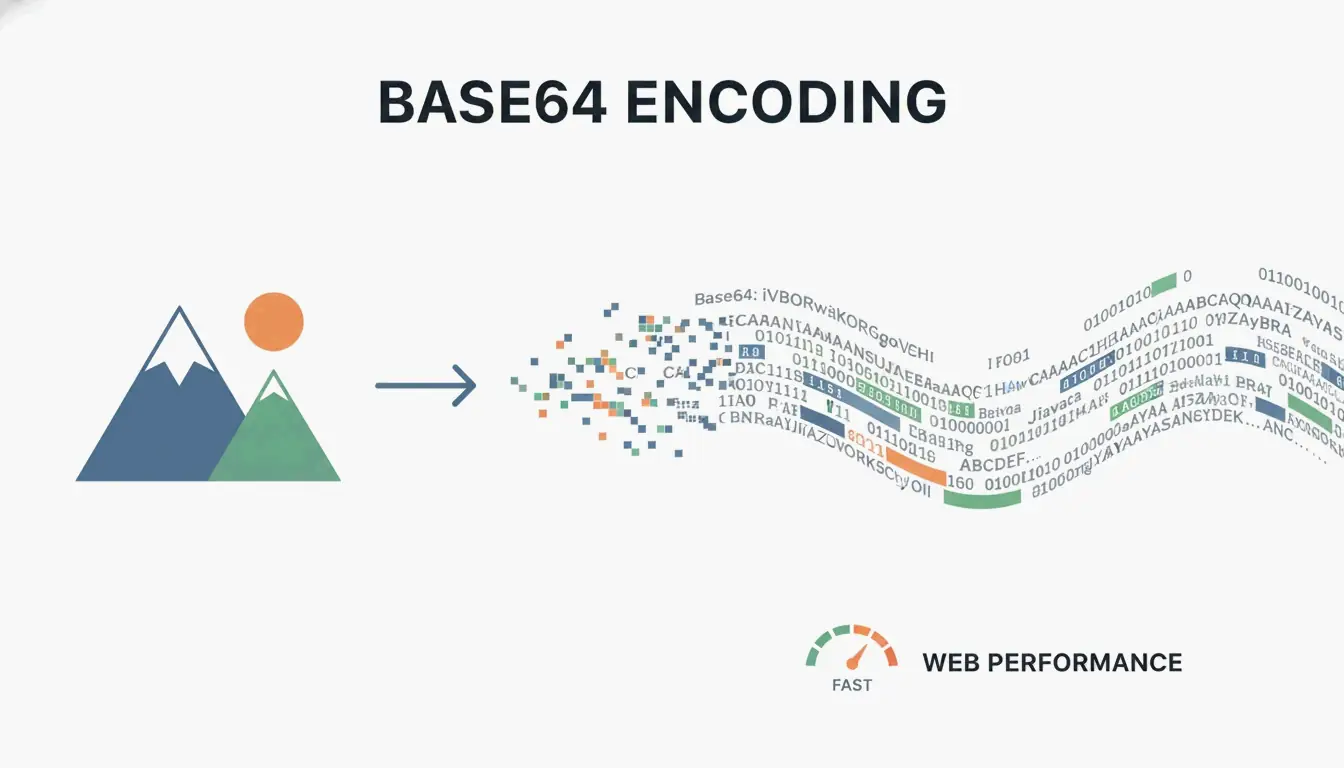
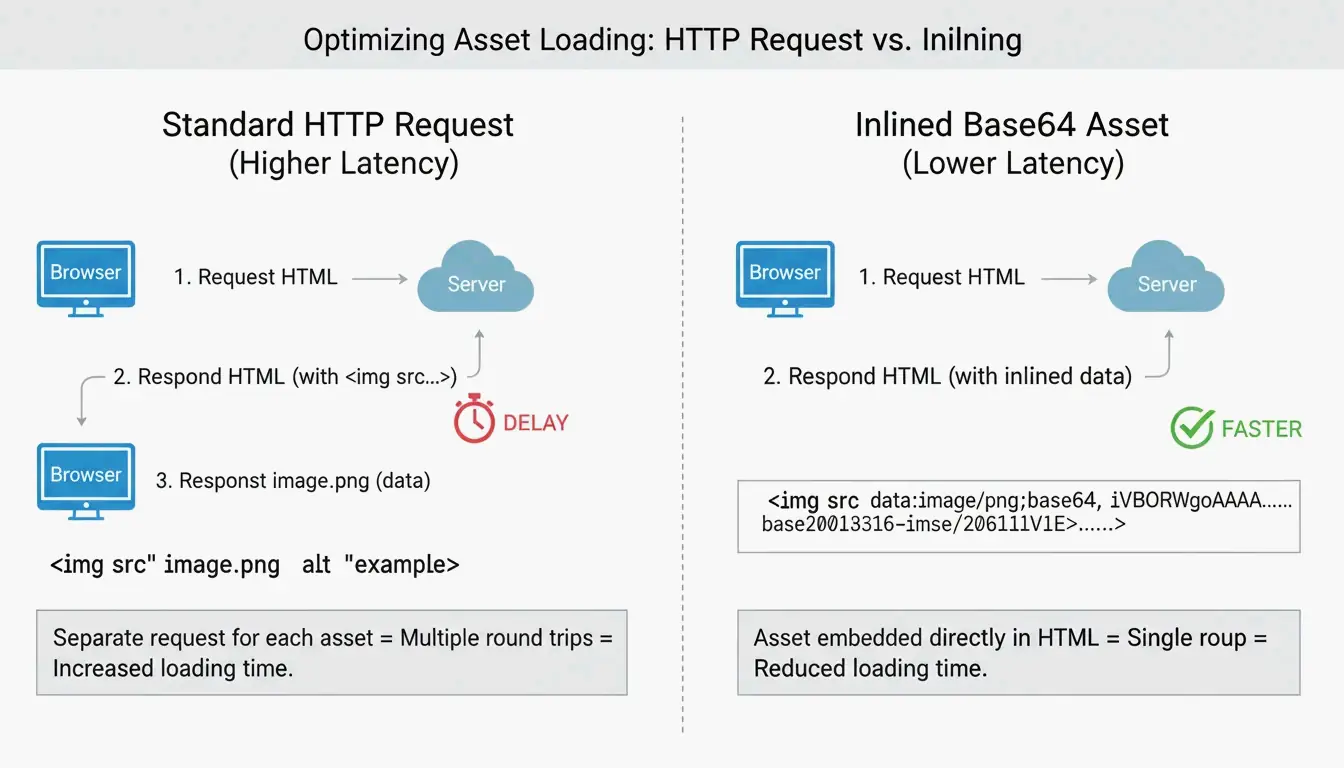
To embed images in HTML using Base64, convert the image to a Data URI string and place it in the <img> src attribute or CSS background-image property. This eliminates HTTP requests but adds a 33% size overhead — only use for assets under 10 KB.
Two Methods: HTML and CSS
Method 1: HTML <img> Tag
Per DebugBear, the standard format:
data:image/[format];base64,[encoded_string]
Best for: small logos, above-the-fold icons that must render instantly.
Method 2: CSS background-image
background-image: url(data:image/png;base64,PHN2ZyB4bWxucz...);
Per FreeConverto, this works well for navigation icons and buttons — they render the moment CSS is parsed.
Format Prefixes
| Image Format | Data URI Prefix |
|---|---|
| PNG | data:image/png;base64, |
| JPEG | data:image/jpeg;base64, |
| WebP | data:image/webp;base64, |
| SVG | data:image/svg+xml;base64, |
| GIF | data:image/gif;base64, |
| AVIF | data:image/avif;base64, |
The 33% Size Overhead
Per Wikipedia, Base64 encoding increases file size by ~33% because it represents binary data using only 64 ASCII characters.
| Original File | Base64 Size | Overhead |
|---|---|---|
| 1 KB | ~1.33 KB | +0.33 KB |
| 5 KB | ~6.67 KB | +1.67 KB |
| 10 KB | ~13.3 KB | +3.3 KB |
| 50 KB | ~66.7 KB | +16.7 KB |
| 100 KB | ~133 KB | +33 KB |
| 500 KB | ~667 KB | +167 KB |
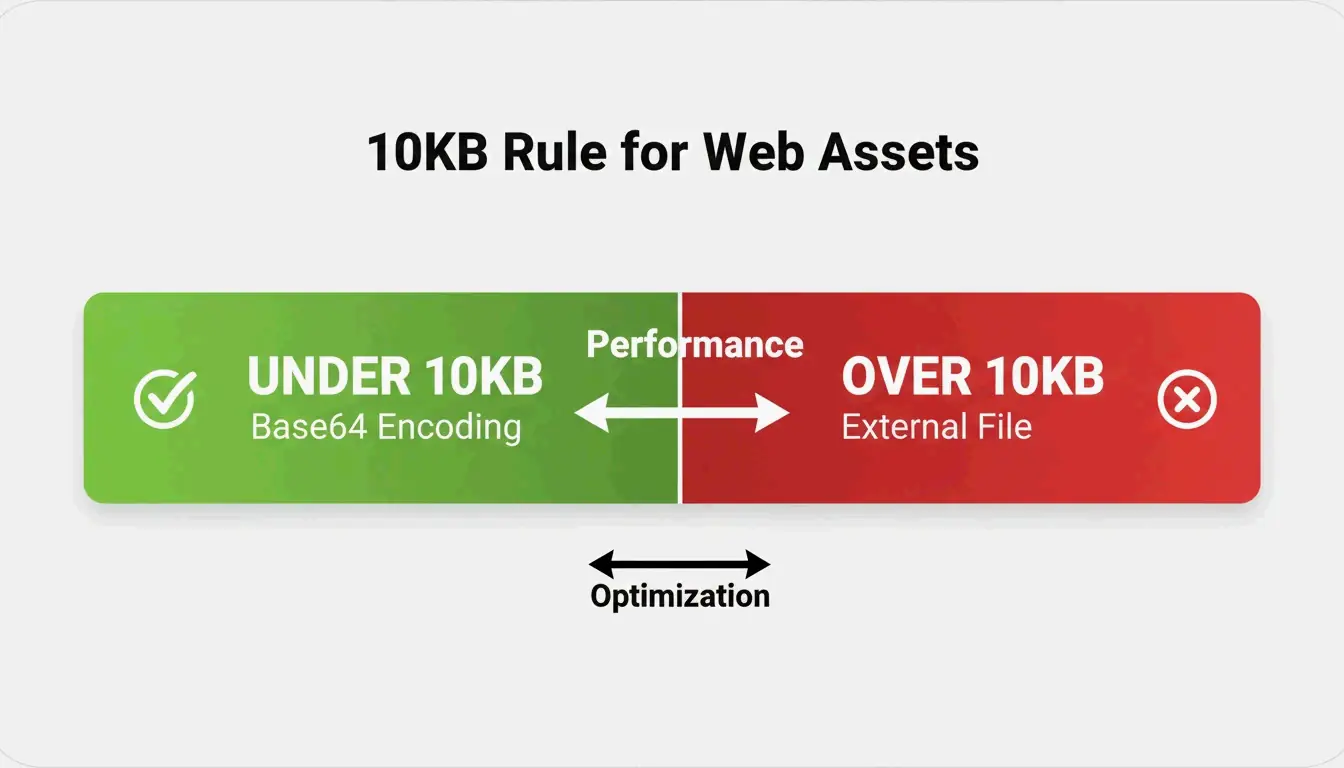
The 10KB Rule
Per FreeConverto, keep Base64 assets under 5–10 KB. Above 10 KB, the size overhead hurts performance more than the saved HTTP request helps.
Impact on Core Web Vitals
A DebugBear analysis showed that HTML files exceeding 1 MB from embedded images cause browser parsing delays, hurting Largest Contentful Paint (LCP).
Efficiency Tip: Convert to WebP First
Per FreeConverto, convert images to WebP before Base64 encoding. WebP is more compressed than PNG/JPEG, producing a shorter Base64 string.
| Format | Original Size | Base64 Size |
|---|---|---|
| PNG icon | 8 KB | ~10.7 KB |
| WebP (same icon) | 4 KB | ~5.3 KB |
WebP + Base64 = half the string length of PNG + Base64.
Automation Tools
| Tool | Method | Security |
|---|---|---|
| VS Code Extension (“Image to Base64”) | Right-click → copy Base64 string | Local |
| FreeConverto | Browser-based FileReader API | Files never leave your device |
| Node.js script | CI/CD build process automation | Local/server |
When to Use vs. Avoid Base64
| Use Base64 When | Avoid Base64 When |
|---|---|
| Small UI icons (< 10 KB) | Large photos (> 10 KB) |
| Above-the-fold critical assets | Images repeated across multiple pages |
| Email HTML templates (blocked external images) | Assets that benefit from browser caching |
| Single-use decorative elements | SVGs (use raw XML instead — smaller + compressible) |
Per JustUse.me, Base64 is particularly valuable for email templates where many clients block external images by default.
Conclusion
Use Base64 embedding for small UI assets under 10 KB — convert to WebP first for the shortest strings. Keep large photos and shared assets as external files for caching. For email templates, Base64 ensures images display without user interaction.
FAQ
Why is Base64 code so long?
Base64 represents binary data using only 64 ASCII characters — less efficient than binary storage. Every pixel and color value translates into multiple text characters, adding ~33% overhead. High-resolution images produce massive strings.
Does Base64 provide security or encryption?
No. Base64 is encoding, not encryption. Per FreeConverto, it’s easily reversible — anyone with the string can decode it instantly without a key. Never rely on it for protecting image content.
Can I use Base64 for large photographs?
Highly discouraged. Large Base64 strings bloat HTML/CSS, delay rendering, and hurt SEO. Per DebugBear, they block critical resource loading. Use external files with caching and lazy loading instead.
SectoJoy
• Indie Hacker & DeveloperI'm an indie hacker building iOS and web applications, with a focus on creating practical SaaS products. I specialize in AI SEO, constantly exploring how intelligent technologies can drive sustainable growth and efficiency.