Comment intégrer rapidement des images en HTML avec Base64 (2026)
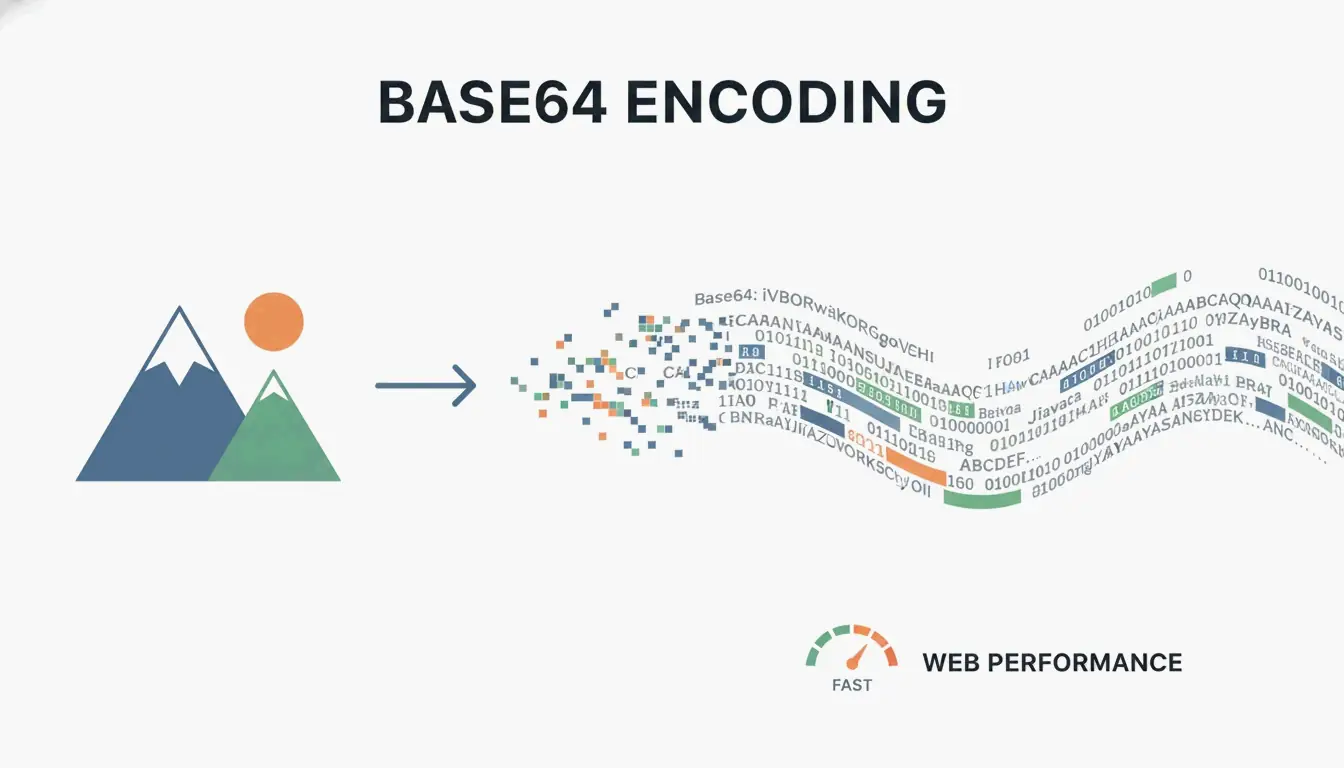
Pour intégrer des images en HTML avec Base64, convertissez l’image en chaîne Data URI et placez-la dans l’attribut src de <img> ou la propriété CSS background-image. Cela élimine les requêtes HTTP mais ajoute une surcharge de 33 % — utilisez uniquement pour les ressources de moins de 10 Ko.
Deux méthodes : HTML et CSS
Méthode 1 : Balise HTML <img>
Selon DebugBear, le format standard :
data:image/[format];base64,[encoded_string]
Idéal pour : petits logos, icônes au-dessus de la ligne de flottaison devant s’afficher instantanément.
Méthode 2 : CSS background-image
background-image: url(data:image/png;base64,PHN2ZyB4bWxucz...);
Selon FreeConverto, cela fonctionne bien pour les icônes de navigation et les boutons — ils s’affichent dès que le CSS est analysé.
Préfixes de format
| Format d’image | Préfixe Data URI |
|---|---|
| PNG | data:image/png;base64, |
| JPEG | data:image/jpeg;base64, |
| WebP | data:image/webp;base64, |
| SVG | data:image/svg+xml;base64, |
| GIF | data:image/gif;base64, |
| AVIF | data:image/avif;base64, |
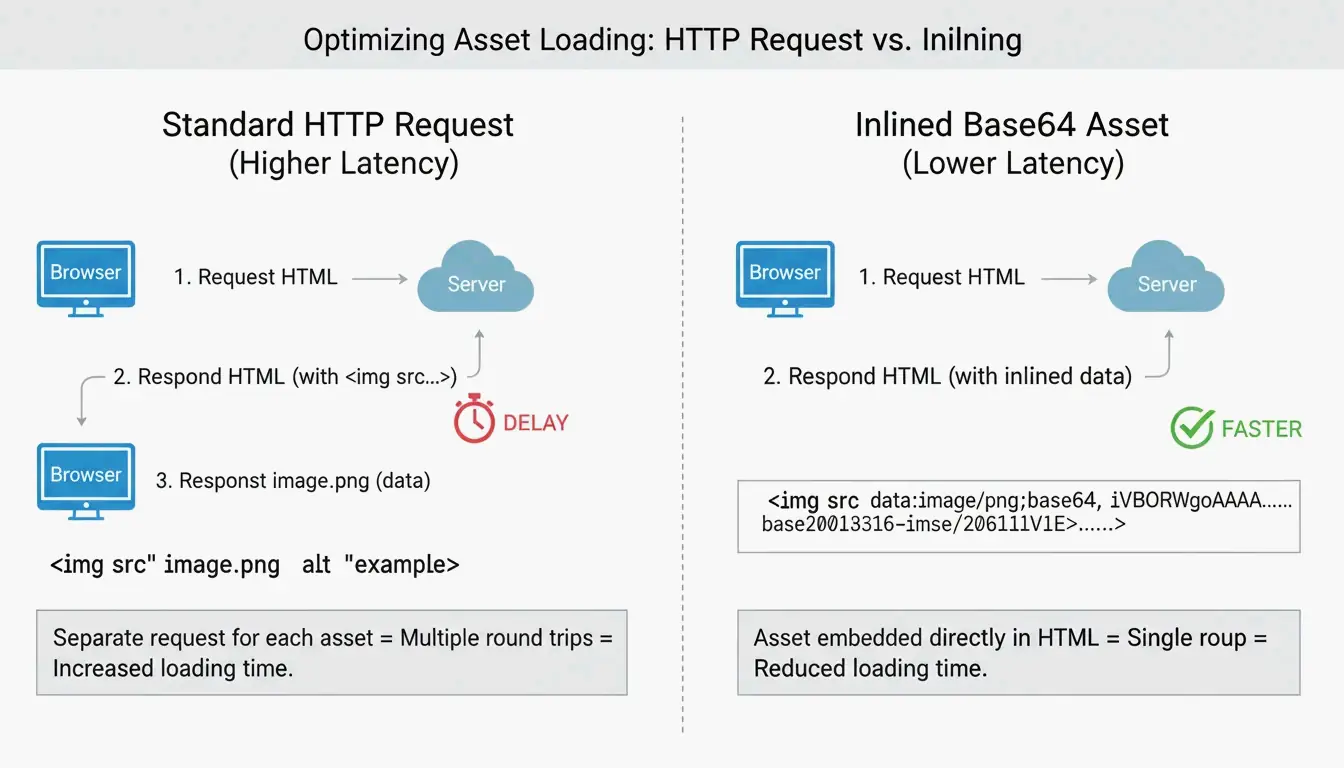
La surcharge de 33 %
Selon Wikipédia, l’encodage Base64 augmente la taille du fichier d’environ 33 % car il représente les données binaires avec seulement 64 caractères ASCII.
| Fichier original | Taille Base64 | Surcharge |
|---|---|---|
| 1 Ko | ~1,33 Ko | +0,33 Ko |
| 5 Ko | ~6,67 Ko | +1,67 Ko |
| 10 Ko | ~13,3 Ko | +3,3 Ko |
| 50 Ko | ~66,7 Ko | +16,7 Ko |
| 100 Ko | ~133 Ko | +33 Ko |
| 500 Ko | ~667 Ko | +167 Ko |
La règle des 10 Ko
Selon FreeConverto, gardez les ressources Base64 sous 5 à 10 Ko. Au-delà de 10 Ko, la surcharge nuit plus aux performances que l’économie de requête HTTP n’apporte.
Impact sur les Core Web Vitals
Une analyse DebugBear a montré que les fichiers HTML dépassant 1 Mo à cause d’images intégrées causent des retards d’analyse du navigateur, affectant le Largest Contentful Paint (LCP).
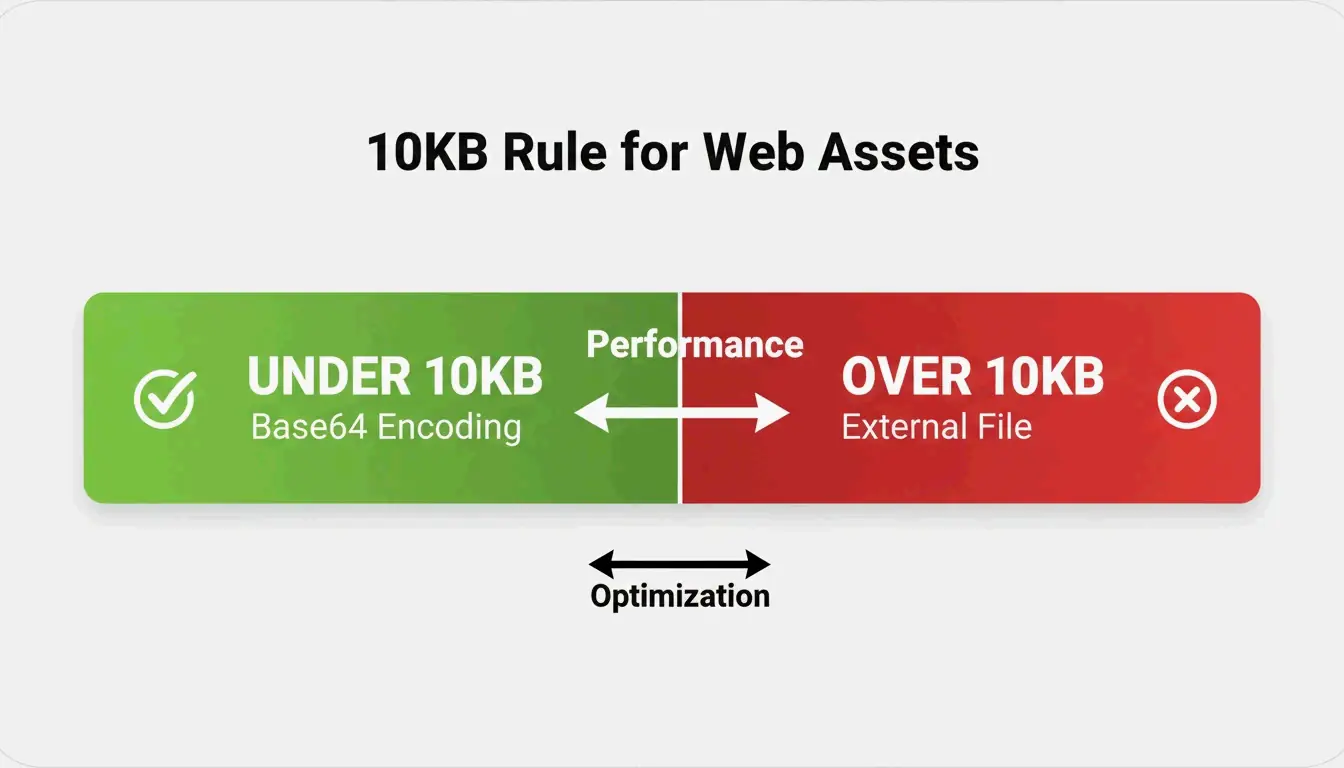
Astuce d’efficacité : convertir en WebP d’abord
Selon FreeConverto, convertissez les images en WebP avant l’encodage Base64. WebP est plus compressé que PNG/JPEG, produisant une chaîne Base64 plus courte.
| Format | Taille originale | Taille Base64 |
|---|---|---|
| Icône PNG | 8 Ko | ~10,7 Ko |
| WebP (même icône) | 4 Ko | ~5,3 Ko |
WebP + Base64 = moitié de la longueur de chaîne par rapport à PNG + Base64.
Outils d’automatisation
| Outil | Méthode | Sécurité |
|---|---|---|
| Extension VS Code (« Image to Base64 ») | Clic droit → copier la chaîne Base64 | Local |
| FreeConverto | FileReader API dans le navigateur | Les fichiers ne quittent pas votre appareil |
| Script Node.js | Automatisation CI/CD | Local/serveur |
Quand utiliser ou éviter Base64
| Utiliser Base64 quand | Éviter Base64 quand |
|---|---|
| Petites icônes UI (< 10 Ko) | Grandes photos (> 10 Ko) |
| Ressources critiques au-dessus de la ligne de flottaison | Images réutilisées sur plusieurs pages |
| Modèles HTML d’e-mails (images externes bloquées) | Ressources bénéficiant du cache navigateur |
| Éléments décoratifs à usage unique | SVG (utilisez le XML brut — plus petit + compressible) |
Selon JustUse.me, Base64 est particulièrement précieux pour les modèles d’e-mails où de nombreux clients bloquent les images externes par défaut.
Conclusion
Utilisez l’intégration Base64 pour les petites ressources UI de moins de 10 Ko — convertissez en WebP d’abord pour les chaînes les plus courtes. Gardez les grandes photos et ressources partagées en fichiers externes pour le cache. Pour les modèles d’e-mails, Base64 garantit l’affichage des images sans interaction de l’utilisateur.
FAQ
Pourquoi le code Base64 est-il si long ?
Base64 représente les données binaires avec seulement 64 caractères ASCII — moins efficace que le stockage binaire. Chaque pixel et valeur de couleur se traduit par plusieurs caractères texte, ajoutant ~33 % de surcharge. Les images haute résolution produisent des chaînes massives.
Base64 offre-t-il une sécurité ou un chiffrement ?
Non. Base64 est un encodage, pas un chiffrement. Selon FreeConverto, il est facilement réversible — toute personne avec la chaîne peut la décoder instantanément sans clé. Ne comptez jamais dessus pour protéger le contenu des images.
Puis-je utiliser Base64 pour les grandes photographies ?
Fortement déconseillé. Les grandes chaînes Base64 gonflent le HTML/CSS, retardent le rendu et nuisent au SEO. Selon DebugBear, elles bloquent le chargement des ressources critiques. Utilisez plutôt des fichiers externes avec cache et chargement différé.
SectoJoy
• Indie Hacker & DeveloperI'm an indie hacker building iOS and web applications, with a focus on creating practical SaaS products. I specialize in AI SEO, constantly exploring how intelligent technologies can drive sustainable growth and efficiency.