Cara Mendengarkan Artikel: 7 Cara Terbaik untuk Mendengar Web di Tahun 2026
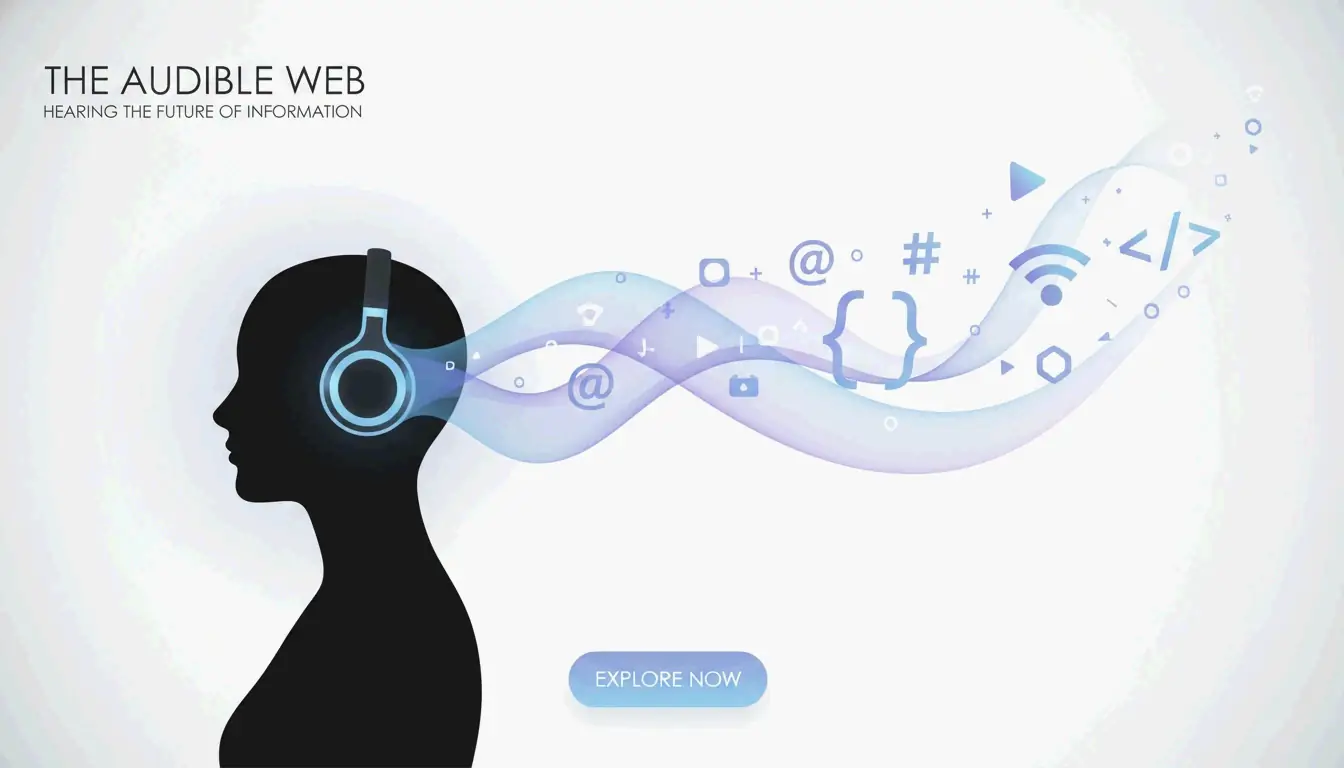
Mendengarkan artikel di tahun 2026 berarti menggunakan alat berbasis AI seperti Speechify (1.000+ suara, kecepatan 4,5x) atau TTS bawaan browser seperti Edge Read Aloud (gratis, suara terdengar alami). TTS neural modern membuat artikel terdengar seperti podcast profesional — lengkap dengan fitur AI percakapan untuk tanya jawab secara real-time.
Perbandingan 7 Metode
| # | Alat / Metode | Biaya | Cocok Untuk | Kecepatan Maks |
|---|---|---|---|---|
| 1 | Speechify | Freemium | Produktivitas profesional, dukungan multi-format | 4,5x |
| 2 | Noa (News Over Audio) | Langganan | Jurnalisme terkurasi (FT, Bloomberg, NYT) | 2x |
| 3 | Konversi Podcast | Bervariasi | PDF, dokumen panjang, pelajar | 2–3x |
| 4 | Edge Read Aloud | Gratis | Mendengarkan cepat di browser, suara gratis terbaik | 2x |
| 5 | Chrome “Dengarkan Halaman Ini” | Gratis | Jelajah web di perangkat mobile | 2x |
| 6 | News in Levels | Gratis | Pelajar bahasa Inggris (3 tingkat kesulitan) | Dapat disesuaikan |
| 7 | Pocket / Instapaper | Freemium | Simpan untuk dibaca nanti dengan sinkronisasi audio | 2x |
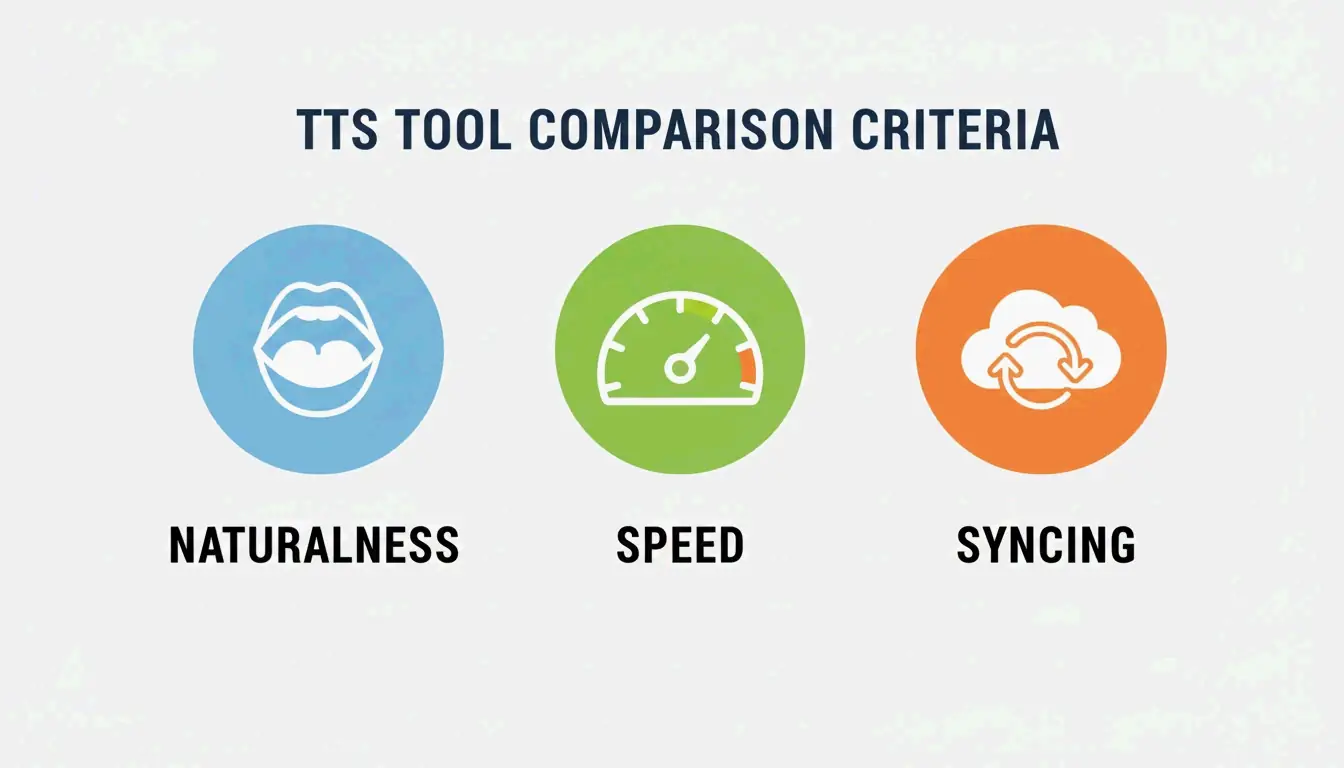
Kriteria Evaluasi
| Faktor | Yang Perlu Diperiksa | Mengapa |
|---|---|---|
| Kenaturalan Suara | Model neural dengan emosi dan ritme | Menghadapi istilah teknis, terdengar seperti podcast |
| Rentang Kecepatan | Hingga 4,5x tanpa distorsi | Ahli produktivitas Ali Abdaal menganjurkan mendengarkan cepat untuk pembelajaran yang efisien |
| Sinkronisasi Lintas Perangkat | Pelacakan progres Desktop ↔ Mobile | Perpindahan yang mulus antar perangkat |
Metode 1: Speechify — Pemimpin Pasar
Menurut Speechify: 55 juta pengguna, 1.000+ suara, mendukung 60+ bahasa.
| Fitur | Detail |
|---|---|
| Platform | iOS, Android, Mac, Windows, Chrome |
| Format Input | PDF, email, artikel web, foto teks |
| Suara Selebriti | Snoop Dogg, Gwyneth Paltrow, dan lainnya |
| Fitur Baru 2026 | Ketik suara (dikte sambil mendengarkan), Jawaban Cepat (kuis AI) |
| Kecepatan | Hingga 4,5x dengan artikulasi yang jelas |
Metode 2: Noa — Jurnalisme Terkurasi
Noa menyajikan artikel yang dinarasikan oleh manusia dari penerbit premium.
| Fitur | Detail |
|---|---|
| Sumber | Financial Times, Bloomberg, The Economist, NYT |
| Kurasi | Editor manusia membuat “seri” bertema (misalnya, “Keadaan AI di Tahun 2026”) |
| Cocok Untuk | Jurnalisme mendalam, cakupan topik dari berbagai perspektif |
Metode 3: Konversi Podcast
Ubah dokumen panjang menjadi audio terstruktur dengan pembukaan, ringkasan, dan narasi pembawa acara.
| Fitur | Detail |
|---|---|
| Input | Dokumen hukum 50 halaman, jurnal medis, makalah penelitian |
| Output | MP3 atau feed RSS pribadi untuk pemutar podcast |
| Kloning Suara | Rekam beberapa detik suara Anda → gunakan sebagai narator |
| Aksesibilitas | Mendukung disleksia dan gangguan penglihatan dengan suara yang familiar |
Buat Ringkasan Audio Harian (Alur Kerja Pro)
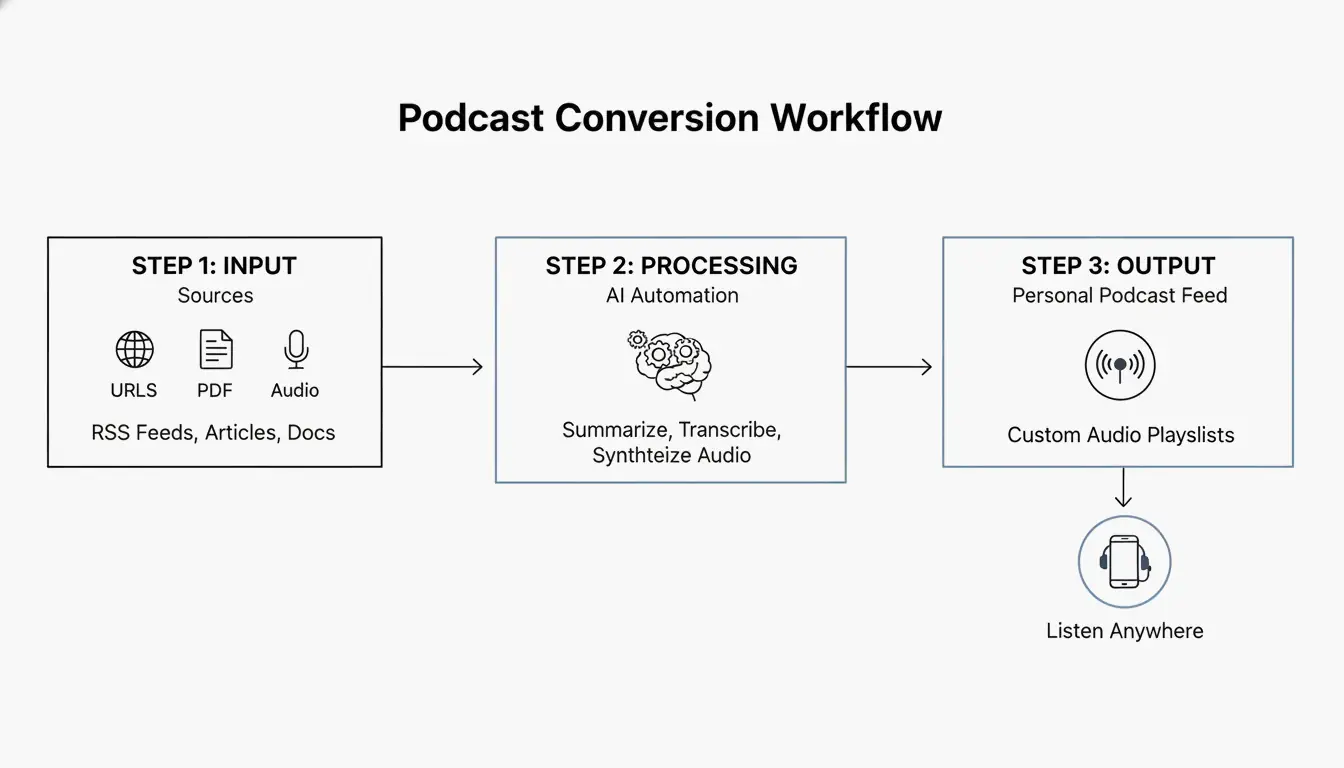
- Kumpulkan — Salurkan feed RSS, buletin, tautan tersimpan ke satu antrean
- Ringkas — AI menghasilkan ringkasan eksekutif 5 menit (seperti “The 7” dari The Washington Post — ringkasan harian 10 menit)
- Dengarkan — Feed audio pribadi diputar seperti stasiun radio kustom
- Tanya — Fitur “Tanya Saat Mendengarkan”: interupsi untuk mendapatkan konteks, lalu lanjutkan
Opsi Gratis: TTS Bawaan Browser
| Browser | Fitur | Suara | Offline |
|---|---|---|---|
| Microsoft Edge | Read Aloud | Suara alami (gratis) | Dengan paket bahasa |
| Google Chrome (Mobile) | “Dengarkan Halaman Ini” | Berbagai aksen regional | Memerlukan koneksi |
| macOS/iOS | Spoken Content (Aksesibilitas) | Suara sistem | Ya |
| Android | Select to Speak | Suara Google TTS | Dengan paket bahasa |
Kesimpulan
Untuk produktivitas maksimal, gunakan Speechify dengan kecepatan 4,5x. Untuk jurnalisme terkurasi, gunakan Noa. Untuk mendengarkan secara gratis, Edge Read Aloud memberikan suara alami terbaik. Mulailah dengan memasang ekstensi browser dan ubah perjalanan Anda berikutnya menjadi sesi belajar.
Pertanyaan yang Sering Diajukan
Apakah saya bisa mendengarkan artikel secara offline?
Ya — Speechify dan Noa mendukung unduhan offline melalui Wi-Fi. TTS browser (Edge, Chrome) umumnya memerlukan koneksi aktif kecuali Anda mengunduh paket bahasa lokal melalui pengaturan sistem.
Bagaimana cara mengubah PDF menjadi podcast?
Unggah PDF ke Speechify atau alat konversi podcast → gunakan AI untuk menghasilkan naskah ringkasan → pilih “Ekspor ke Podcast” atau “Buat File Audio” → dapatkan MP3 atau feed RSS pribadi untuk pemutar podcast mana pun.
Apakah ada suara AI gratis yang terdengar alami?
Ya. “Read Aloud” dari Microsoft Edge menawarkan suara alami gratis yang setara dengan layanan berbayar. “Dengarkan Halaman Ini” dari Chrome Mobile juga menyediakan narasi berkualitas tinggi. Untuk pengguna teknis, model TTS sumber terbuka di Hugging Face dapat menghasilkan audio berkualitas tinggi tanpa berlangganan.
SectoJoy
• Indie Hacker & DeveloperI'm an indie hacker building iOS and web applications, with a focus on creating practical SaaS products. I specialize in AI SEO, constantly exploring how intelligent technologies can drive sustainable growth and efficiency.