How to Listen to Articles: 7 Best Ways to Hear the Web in 2026
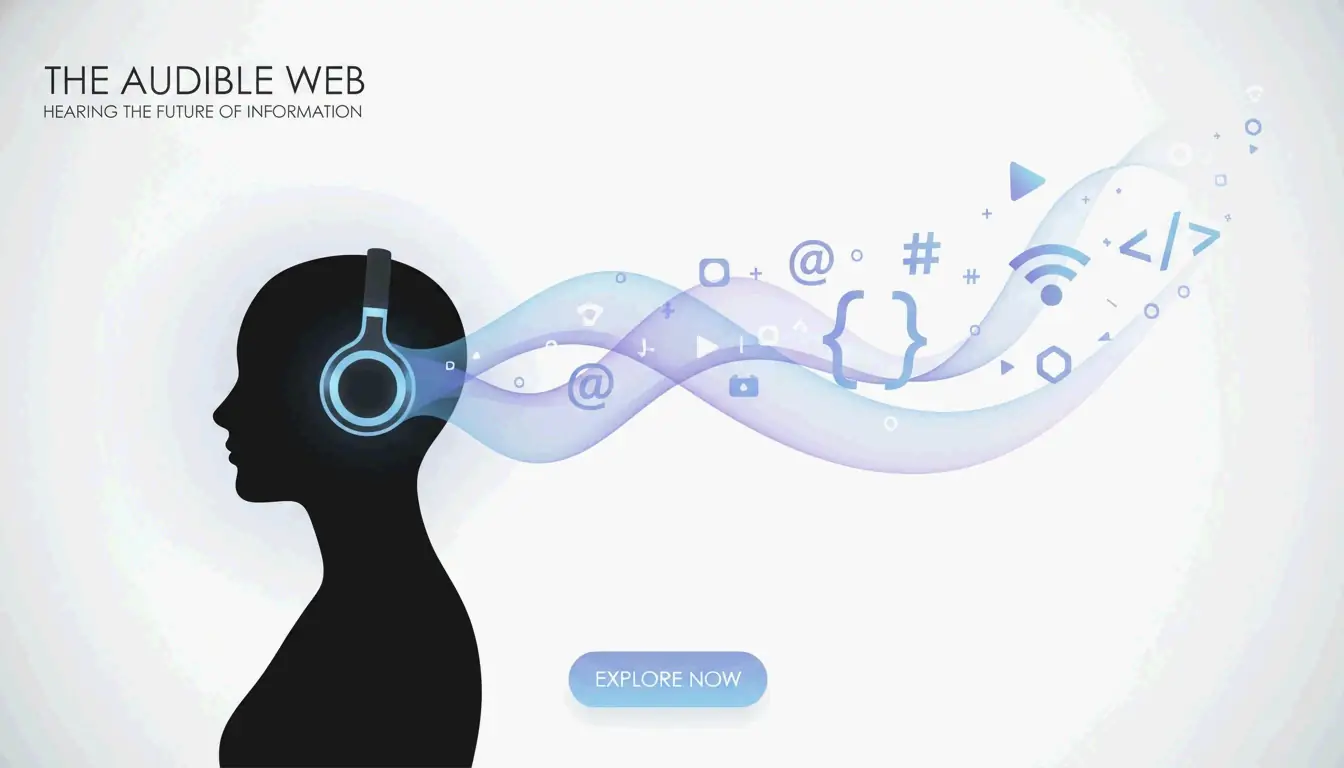
To listen to articles in 2026, use AI-driven tools like Speechify (1,000+ voices, 4.5x speed) or built-in browser TTS like Edge Read Aloud (free, natural-sounding). Modern neural TTS makes articles sound like professional podcasts, with conversational AI features for real-time Q&A.
7 Methods Compared
| # | Tool/Method | Cost | Best For | Max Speed |
|---|---|---|---|---|
| 1 | Speechify | Freemium | Professional productivity, multi-format | 4.5x |
| 2 | Noa (News Over Audio) | Subscription | Curated journalism (FT, Bloomberg, NYT) | 2x |
| 3 | Podcast Conversion | Varies | PDFs, long documents, students | 2–3x |
| 4 | Edge Read Aloud | Free | Quick browser listening, best free voices | 2x |
| 5 | Chrome “Listen to this Page” | Free | Mobile web browsing | 2x |
| 6 | News in Levels | Free | English learners (3 difficulty levels) | Adjustable |
| 7 | Pocket / Instapaper | Freemium | Save-for-later with audio sync | 2x |
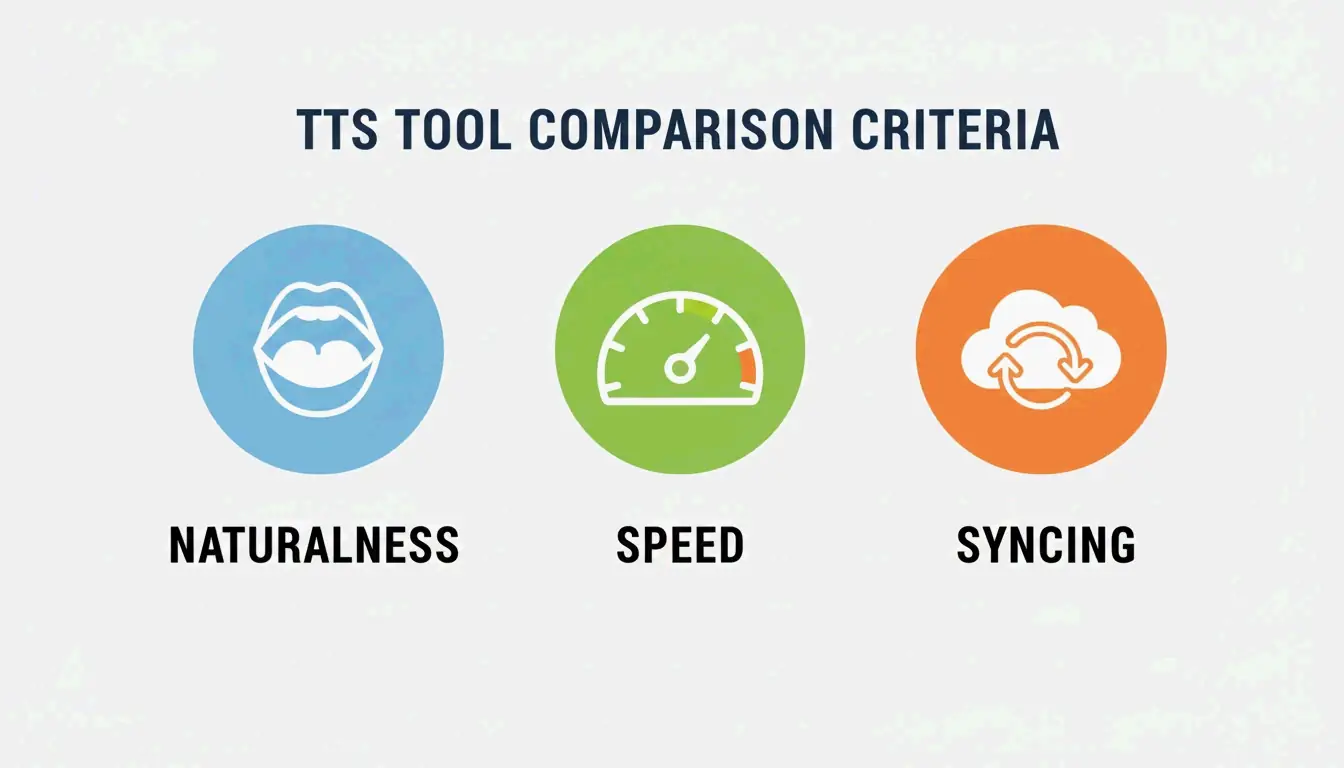
Evaluation Criteria
| Factor | What to Look For | Why |
|---|---|---|
| Voice naturalness | Neural models with emotion and rhythm | Handles jargon, sounds like a podcast |
| Speed range | Up to 4.5x without distortion | Productivity expert Ali Abdaal advocates speed listening for efficient learning |
| Cross-device sync | Desktop ↔ mobile progress tracking | Seamless transition between devices |
Method 1: Speechify — The Leader
Per Speechify: 55 million users, 1,000+ voices, 60+ languages.
| Feature | Detail |
|---|---|
| Platforms | iOS, Android, Mac, Windows, Chrome |
| Input formats | PDFs, emails, web articles, photos of text |
| Celebrity voices | Snoop Dogg, Gwyneth Paltrow, and others |
| 2026 additions | Voice Typing (dictate while listening), Fast Answers (AI quizzes) |
| Speed | Up to 4.5x with clear articulation |
Method 2: Noa — Curated Journalism
Noa provides human-narrated articles from premium publishers.
| Feature | Detail |
|---|---|
| Sources | Financial Times, Bloomberg, The Economist, NYT |
| Curation | Human editors create themed “Series” (e.g., “The State of AI in 2026”) |
| Best for | Deep-dive journalism, multi-angle topic coverage |
Method 3: Podcast Conversion
Turn long documents into structured audio with intro, summary, and host narration.
| Feature | Detail |
|---|---|
| Input | 50-page legal briefs, medical journals, research papers |
| Output | MP3 or private RSS feed for podcast players |
| Voice cloning | Record seconds of your voice → use as narrator |
| Accessibility | Helps dyslexia and visual impairment with familiar voices |
Build a Daily Audio Briefing (Pro Workflow)
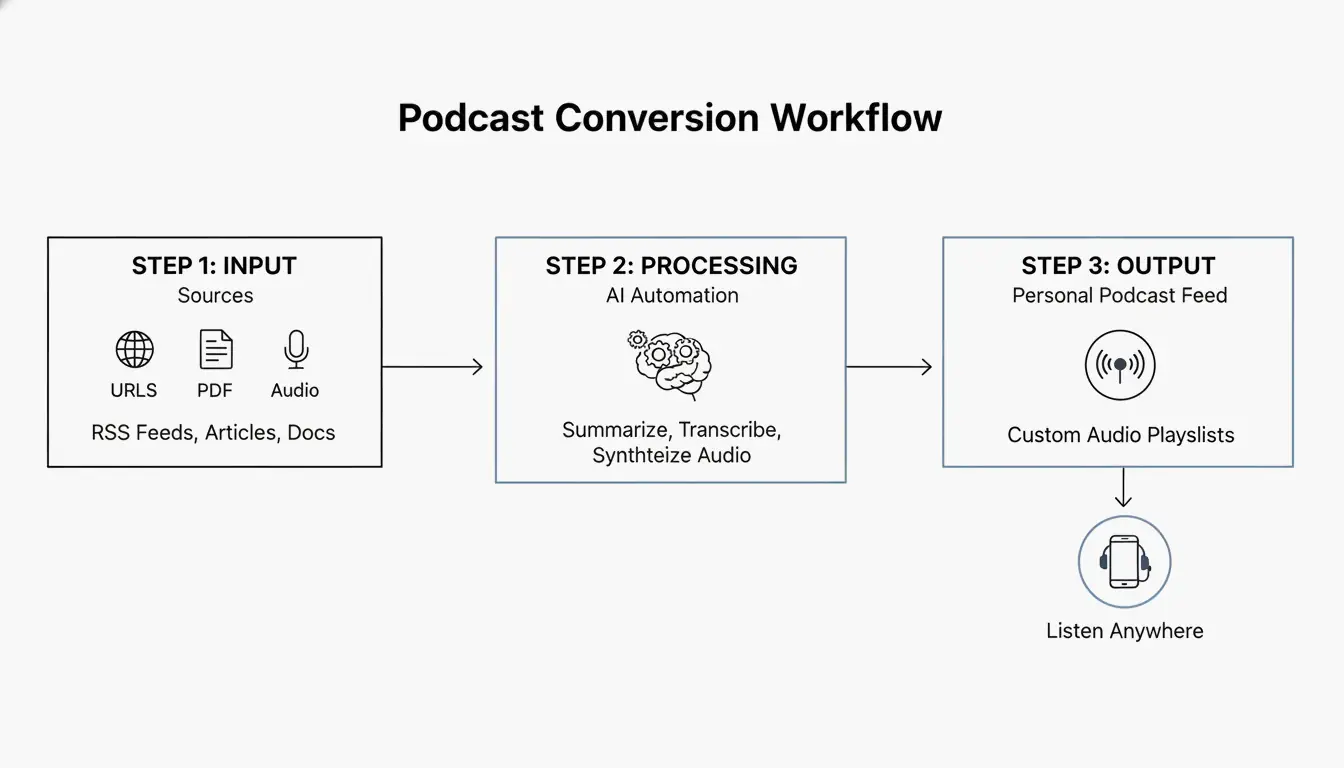
- Collect — RSS feeds, newsletters, saved links into one queue
- Summarize — AI generates 5-minute executive summary (like The Washington Post’s ‘The 7’ — 10-minute daily briefing)
- Listen — Private audio feed plays like a custom radio station
- Ask — “Ask While Listening” feature: interrupt for context, then resume
Free Options: Built-in Browser TTS
| Browser | Feature | Voices | Offline |
|---|---|---|---|
| Microsoft Edge | Read Aloud | Natural voices (free) | With language packs |
| Google Chrome (mobile) | “Listen to this page” | Multiple regional accents | Requires connection |
| macOS/iOS | Spoken Content (Accessibility) | System voices | Yes |
| Android | Select to Speak | Google TTS voices | With language packs |
Conclusion
For maximum productivity, use Speechify at 4.5x speed. For curated journalism, use Noa. For free listening, Edge Read Aloud offers the best natural voices. Start by installing a browser extension and turn your next commute into a learning session.
FAQ
Can I listen to articles offline?
Yes — Speechify and Noa support offline downloads via Wi-Fi. Browser TTS (Edge, Chrome) typically requires an active connection unless you download local language packs through OS settings.
How do I turn a PDF into a podcast?
Upload the PDF to Speechify or a podcast converter → use AI to generate a summary script → select “Export to Podcast” or “Create Audio File” → get an MP3 or private RSS feed for any podcast player.
Are there free natural-sounding AI voices?
Yes. Microsoft Edge “Read Aloud” offers free Natural voices comparable to paid services. Chrome mobile’s “Listen to this page” also provides high-quality narration. For technical users, open-source TTS models on Hugging Face generate quality audio without subscriptions.
SectoJoy
• Indie Hacker & DeveloperI'm an indie hacker building iOS and web applications, with a focus on creating practical SaaS products. I specialize in AI SEO, constantly exploring how intelligent technologies can drive sustainable growth and efficiency.