PDF کو Word میں کیسے تبدیل کریں: 2026 کے طریقے درستگی کے لحاظ سے درجہ بند
سادہ ڈیجیٹل PDF فائلز کے لیے Microsoft Word استعمال کریں، ٹیبلز والے پیچیدہ لے آؤٹس کے لیے Adobe Acrobat Pro، یا سکین شدہ دستاویزات کے لیے AI پر مبنی ٹولز (Copilot، PDNob)۔ صحیح طریقہ اس بات پر منحصر ہے کہ آپ کی PDF نیٹیو (منتخب کیا جا سکنے والا متن) ہے، سکین شدہ (متن کی تصویر) ہے، یا اسے AI کی تعمیر نو کی ضرورت ہے۔
فیصلہ کرنے کا فریم ورک: PDF کی قسم کے مطابق ٹول منتخب کریں
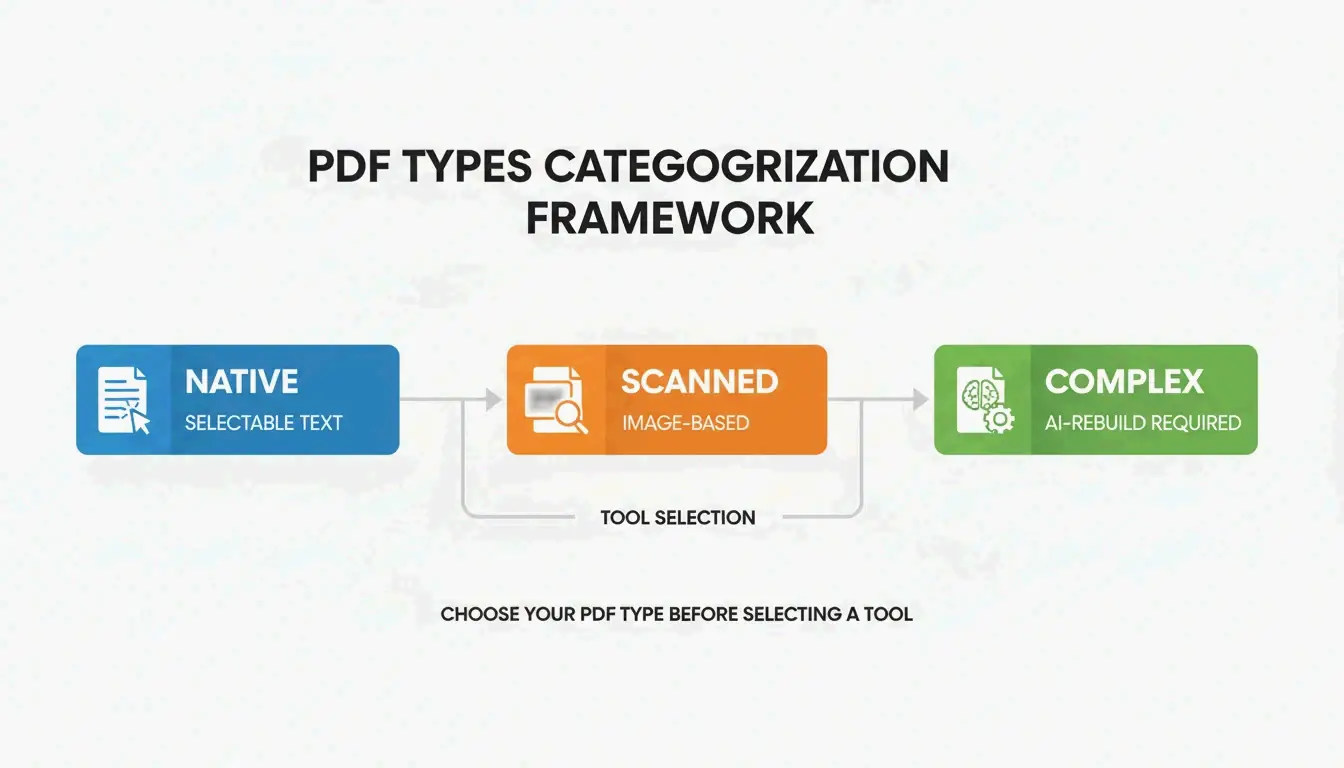
| PDF کی قسم | خصوصیات | بہترین ٹول | متوقع درستگی |
|---|---|---|---|
| نیٹیو | منتخب کیا جا سکنے والا متن، ڈیجیٹل ماخذ | Microsoft Word (مفت) | ~95% |
| سکین شدہ | تصویری، منتخب کیا جا سکنے والا متن نہیں | PDNob / Adobe Acrobat (OCR) | 99% تک |
| پیچیدہ لے آؤٹ | نیسٹڈ ٹیبلز، کثیر کالم، گرافکس | Adobe Acrobat Pro | ~98% |
| AI کی تعمیر نو ضروری | مخلوط مواد، خراب فارمیٹنگ | Microsoft Copilot | ~97% |
طریقہ 1: Microsoft Word — نیٹیو PDF فائلز کے لیے بہترین
سادہ لے آؤٹس کے ساتھ ڈیجیٹل طور پر بنائی گئی PDF فائلز کے لیے، Microsoft Word تیز ترین مفت آپشن ہے۔
ڈیسک ٹاپ: PDF پر دایاں کلک کریں → “Open with” → Microsoft Word۔
ویب: Word for the Web کھولیں، “Open” پر جائیں، اپنی PDF منتخب کریں۔ Word کالمز، اسپیسنگ، اور لائن بریکز کو قابل ترتیب متن میں تبدیل کر دیتا ہے۔
اہم: Word اکثر تبدیل شدہ فائلز کو “Compatibility Mode” میں کھولتا ہے، جو اعلی درجے کی تدوینی خصوصیات کو بلاک کرتا ہے۔ Microsoft کی ایڈیٹوریل ٹیم فوراً .docx کے طور پر محفوظ کرنے کی سفارش کرتی ہے تاکہ تمام فارمیٹنگ ٹولز فعال ہو جائیں۔
طریقہ 2: Microsoft Copilot — AI دستاویز کی تعمیر نو
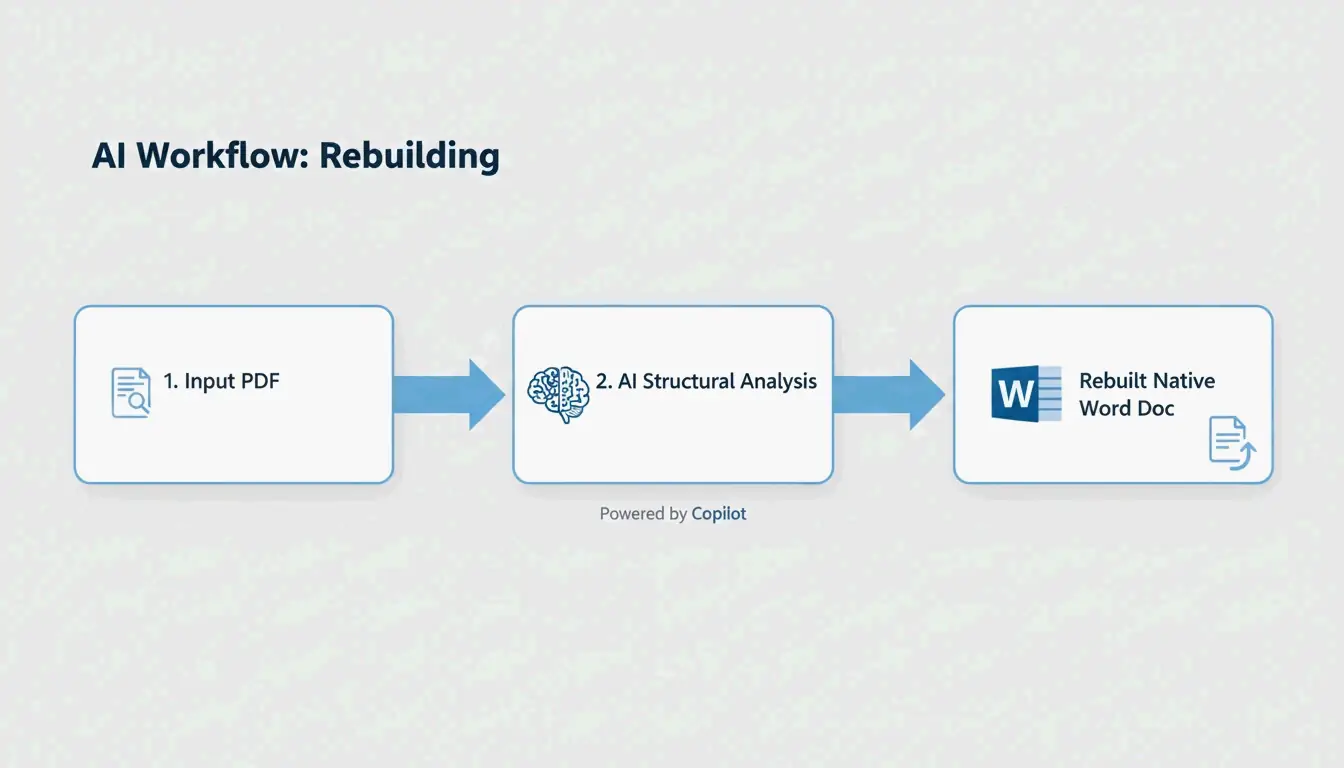
2026 کی تبدیلی متن کو دوبارہ ترتیب دینے سے دوبارہ تعمیر کرنے کی طرف ہے۔ Copilot دستاویز کے سیاق و سباق کو سمجھنے کے لیے AI استعمال کرتا ہے — ہیڈرز، فوٹرز، نیسٹڈ ٹیبلز، اور اسٹائل درجہ بندی کو پہچانتا ہے جسے روایتی کنورٹرز ہموار کر دیتے ہیں۔
ورک فلو:
- PDF کو Word میں Copilot چیٹ سے منسلک کریں۔
- Copilot ساخت کا تجزیہ کرتا ہے اور دستاویز کو منظم ہیڈنگز اور لسٹس کے ساتھ دوبارہ تعمیر کرتا ہے۔
- کنورژن کی خامیوں کو دور کرنے کے لیے قدرتی زبان کے پرامپٹس استعمال کریں۔
موثر کلین اپ پرامپٹس:
- “ٹوٹی ہوئی لائن بریکز اور دوہرے متن کو شناخت کریں اور درست کریں، ساتھ ہی بلٹ پوائنٹس اور ہیڈنگز شامل کریں۔”
- “اس دستاویز کا جائزہ لیں اور رسائی کے لیے ہیڈنگ ڈھانچے اور ٹیبل فارمیٹنگ میں بہتری کی تجاویز پیش کریں۔”
- “اسپیسنگ، غیر مساوی فونٹس، یا غلط لسٹ نمبرنگ کی شناخت کریں اور ان کی اصلاح کی تجاویز دیں۔”
Microsoft انٹرپرائز صارفین کے لیے “Zero-Knowledge” کلاؤڈ پروسیسنگ فراہم کرتا ہے — خفیہ دستاویزات آپ کے تنظیم کے محفوظ ماحول میں رہتی ہیں۔
طریقہ 3: Adobe Acrobat Pro — پیچیدہ ٹیبلز اور لے آؤٹس
Adobe Acrobat Pro پیچیدہ ساخت والی PDF فائلز کے لیے صنعت کا معیار بنیا ہوا ہے۔ اس کا لے آؤٹ انجن بارڈرز، سیل الائنمنٹس، اور کثیر کالم فارمیٹنگ کو محفوظ رکھتا ہے۔ Acrobat کے ذریعے .docx میں ایکسپورٹ کرنا گرافکس اور نیسٹڈ ٹیبلز کو مفت متبادل سے بہتر طریقے سے ہینڈل کرتا ہے۔
طریقہ 4: سکین شدہ دستاویزات کے لیے OCR
معیاری تبادلوں سے تصویری PDF فائلز سے متن نکالا نہیں جا سکتا۔ OCR (آپٹیکل کیریکٹر ریکگنیشن) ضروری ہے، اور معیار سکین ریزولوشن پر منحصر ہے۔
| سکین کا معیار | DPI | OCR کی درستگی | استعمال کی صورت |
|---|---|---|---|
| کم | 150 DPI | ~90% | فوری متن نکالنا |
| پروفیشنل | 300 DPI | ~99% | قانونی، طبی دستاویزات |
| زیادہ | 600 DPI | 99%+ | آرکائیول، باریک پرنٹ |
PDNob کے مطابق، 2026 میں AI پر مبنی OCR انجنز 300 DPI پر 99% درستگی حاصل کرتے ہیں۔ PDNob PDF Editor بیچ پروسیسنگ فراہم کرتا ہے — درجنوں انوائسز یا معاہدوں پر ایک ہی OCR سیٹنگز لاگو کریں۔
طریقہ 5: Google Docs — مفت بنیادی OCR
PDF کو Google Drive پر اپلوڈ کریں، دایاں کلک کریں → “Open with” → Google Docs۔ بلٹ ان OCR عمل تصویری متن کو قابل ترتیب مواد میں تبدیل کرتا ہے۔
حدود: Google Docs اکثر اصل فونٹس سے مماثل نہیں ہو پاتا اور تصاویر کو متن کی لائنوں میں منتقل کر دیتا ہے۔ سادہ صفحات سے عام متن نکالنے کے لیے مناسب ہے؛ برانڈڈ دستاویزات یا پیچیدہ ڈیٹا ٹیبلز کے لیے ناکافی ہے۔
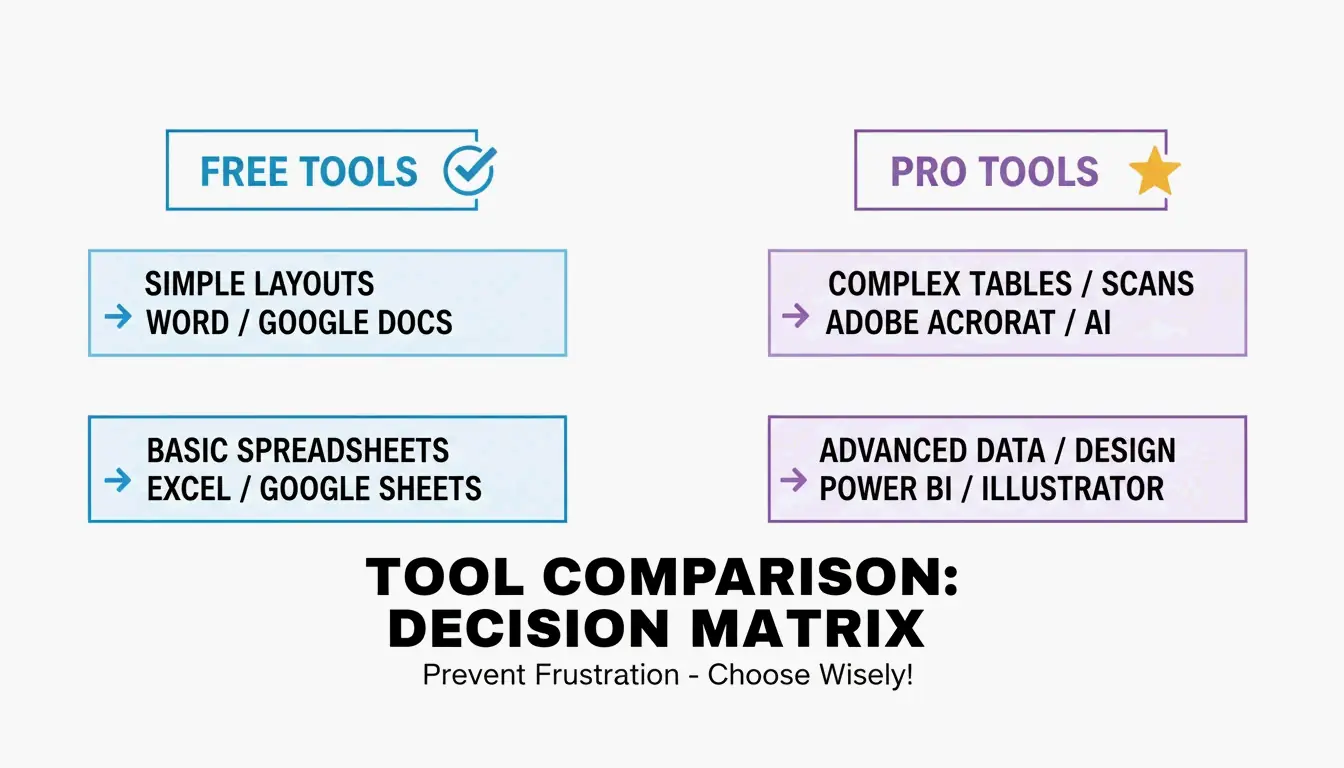
ٹول موازنہ کا خلاصہ
| ٹول | خرچ | بہترین برائے | OCR | بیچ | رازداری |
|---|---|---|---|---|---|
| Microsoft Word | مفت | سادہ نیٹیو PDF فائلز | نہیں | نہیں | لوکل |
| Microsoft Copilot | سبسکرپشن | AI کی تعمیر نو | نہیں | نہیں | Zero-Knowledge |
| Adobe Acrobat Pro | ادائیگی | پیچیدہ ٹیبلز، لے آؤٹس | ہاں (Pro) | ہاں | لوکل/کلاؤڈ |
| PDNob PDF Editor | فری میم | سکین شدہ بیچ OCR | ہاں (AI) | ہاں | لوکل |
| Google Docs | مفت | فوری متن نکالنا | بنیادی | نہیں | کلاؤڈ |
نتیجہ
PDF کی قسم کے مطابق ٹول منتخب کریں: نیٹیو دستاویزات کے لیے Word، پیچیدہ لے آؤٹس کے لیے Adobe Acrobat Pro، اور سکین شدہ فائلز کے لیے AI پر مبنی OCR (PDNob، Copilot)۔ سکین شدہ دستاویزات پر پیشہ ورانہ نتائج کے لیے، یقینی بنائیں کہ ماخذ کم از کم 300 DPI ہو۔ تبدیل شدہ فائل کو ہمیشہ فوراً .docx کے طور پر محفوظ کریں تاکہ Compatibility Mode سے باہر آ جائیں اور مکمل تدوینی صلاحیتوں تک رسائی حاصل ہو۔
عمومی سوالات
کیا میں فارمیٹنگ کھوئے بغیر مفت PDF کو Word میں تبدیل کر سکتا ہوں؟
متن پر مبنی نیٹیو PDF فائلز Word for the Web یا Google Docs کے ساتھ اچھی طرح تبدیل ہوتی ہیں۔ نیسٹڈ ٹیبلز والے پیچیدہ لے آؤٹس کے لیے Adobe Acrobat یا AI کی تعمیر نو ٹولز کی ضرورت ہوتی ہے تاکہ ساخت محفوظ رہے۔ مفت ٹولز میں پیچیدہ دستاویزات میں مقامی تعلقات کو سمجھنے کے لیے ضروری اعلیٰ OCR انجنز نہیں ہوتے۔
کیا حساسی دستاویزات کے لیے آن لائن PDF کنورٹرز استعمال کرنا محفوظ ہے؟
سیکیورٹی فراہم کرنے والے پر منحصر ہے۔ “Zero-Knowledge” کلاؤڈ پروسیسنگ (Microsoft Copilot انٹرپرائز) تلاش کریں یا قانونی اور طبی فائلز کے لیے لوکل ڈیسک ٹاپ سافٹ ویئر (Adobe Acrobat Pro، PDNob) استعمال کریں۔ حساسی مواد اپلوڈ کرنے سے پہلے SOC2 تعمیل اور AI ڈیٹا رازداری لیبلز کی تصدیق کریں۔
AI PDF سے Word کنورژن میں کیسے بہتری لاتا ہے؟
Copilot جیسے AI ٹولز کیریکٹر شناخت سے آگے بڑھ کر دستاویز کی ساخت سمجھتے ہیں — وہ ہیڈرز، فوٹرز، اسٹائلز، اور ٹیبل درجہ بندی کو شناخت کرتے ہیں جسے روایتی کنورٹرز ہموار کر دیتے ہیں۔ قدرتی زبان کے پرامپٹس آپ کو دستی تدوین کے بغیر مخصوص فارمیٹنگ کی خامیوں (ٹوٹی ہوئی لائن بریکز، غیر مساوی فونٹس) کو درست کرنے دیتے ہیں۔
SectoJoy
• Indie Hacker & DeveloperI'm an indie hacker building iOS and web applications, with a focus on creating practical SaaS products. I specialize in AI SEO, constantly exploring how intelligent technologies can drive sustainable growth and efficiency.