كيفية تحويل PDF إلى Word: طرق 2026 مصنفة حسب الدقة
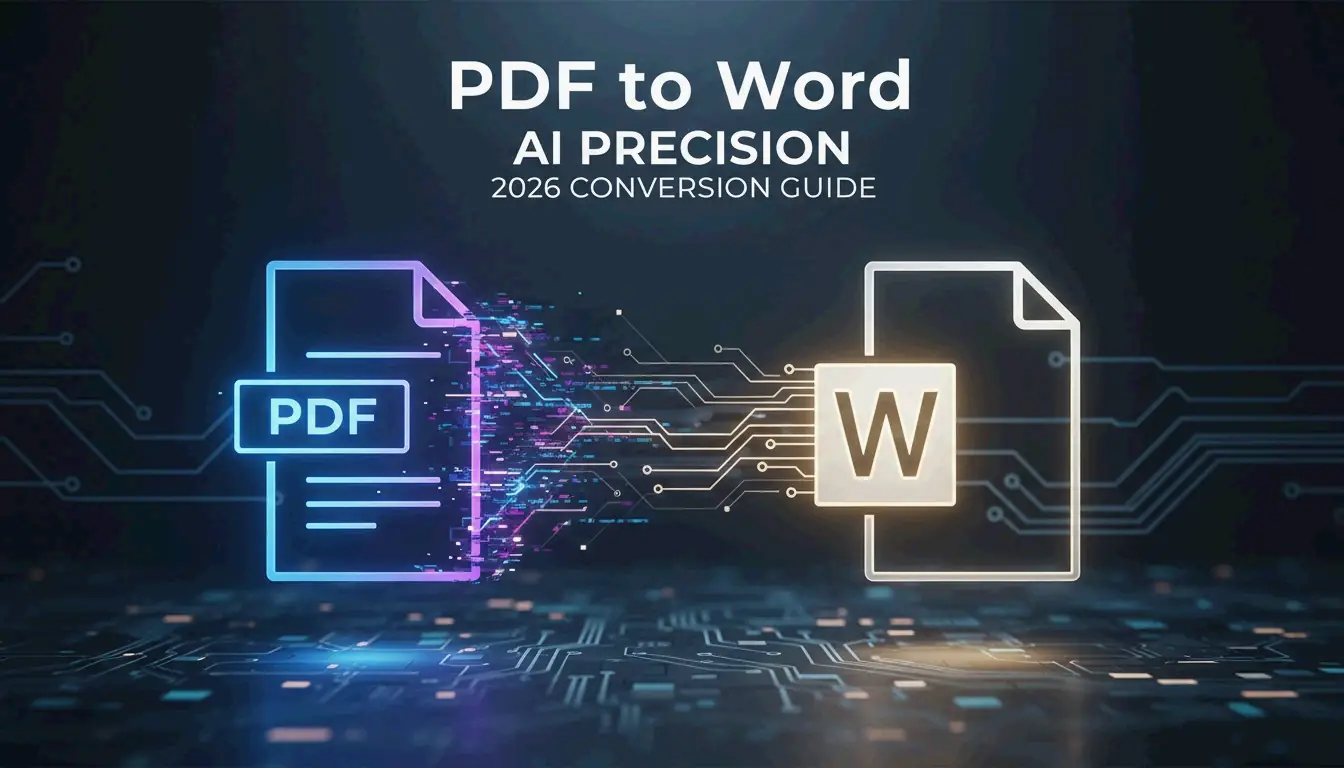
استخدم Microsoft Word لملفات PDF الرقمية البسيطة، أو Adobe Acrobat Pro للتخطيطات المعقدة التي تحتوي على جداول، أو أدوات مدعومة بالذكاء الاصطناعي (Copilot، PDNob) للمستندات الممسوحة ضوئيًا. تعتمد الطريقة الصحيحة على ما إذا كان ملف PDF الخاص بك أصليًا (نص قابل للتحديد)، أو ممسوحًا ضوئيًا (صورة من نص)، أو يتطلب إعادة بناء بالذكاء الاصطناعي.
إطار القرار: مطابقة نوع PDF مع الأداة
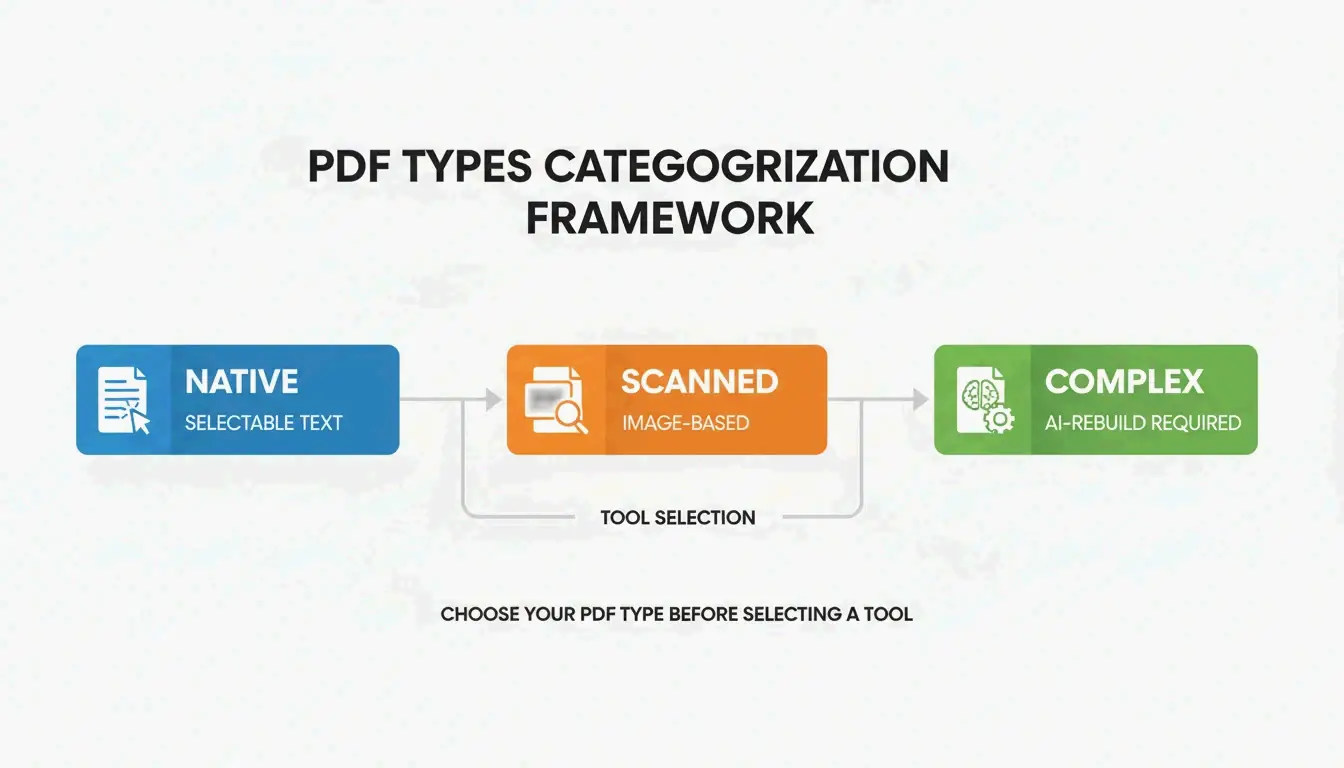
| نوع PDF | الخصائص | الأداة الأفضل | الدقة المتوقعة |
|---|---|---|---|
| أصلي | نص قابل للتحديد، أصل رقمي | Microsoft Word (مجاني) | ~95% |
| ممسوح ضوئيًا | مبني على صورة، لا يوجد نص قابل للتحديد | PDNob / Adobe Acrobat (OCR) | حتى 99% |
| تخطيط معقد | جداول متداخلة، متعدد الأعمدة، رسومات | Adobe Acrobat Pro | ~98% |
| يحتاج إعادة بناء بالذكاء الاصطناعي | محتوى مختلط، تنسيق معطل | Microsoft Copilot | ~97% |
الطريقة 1: Microsoft Word — الأفضل لملفات PDF الأصلية
لملفات PDF المُنشأة رقميًا ذات التخطيطات البسيطة، يُعد Microsoft Word الخيار المجاني الأسرع.
سطح المكتب: انقر بزر الماوس الأيمن على ملف PDF → “فتح باستخدام” → Microsoft Word.
الويب: افتح Word للويب، انتقل إلى “فتح،” وحدد ملف PDF الخاص بك. يحول Word الأعمدة والمسافات وفواصل الأسطر إلى نص قابل للتعديل.
مهم: غالبًا ما يفتح Word الملفات المحولة في “وضع التوافق،” مما يمنع ميزات التحرير المتقدمة. توصي الفريق التحريري في Microsoft بالحفظ فورًا بصيغة .docx لفتح جميع أدوات التنسيق.
الطريقة 2: Microsoft Copilot — إعادة بناء المستندات بالذكاء الاصطناعي
التحول في 2026 هو من إعادة تدفق النص إلى إعادة بنائه. يستخدم Copilot الذكاء الاصطناعي لفهم سياق المستند — التعرف على الرؤوس والتذييلات والجداول المتداخلة والتدرجات الهرمية للأنماط التي تقوم المحولات التقليدية بتسطيحها.
سير العمل:
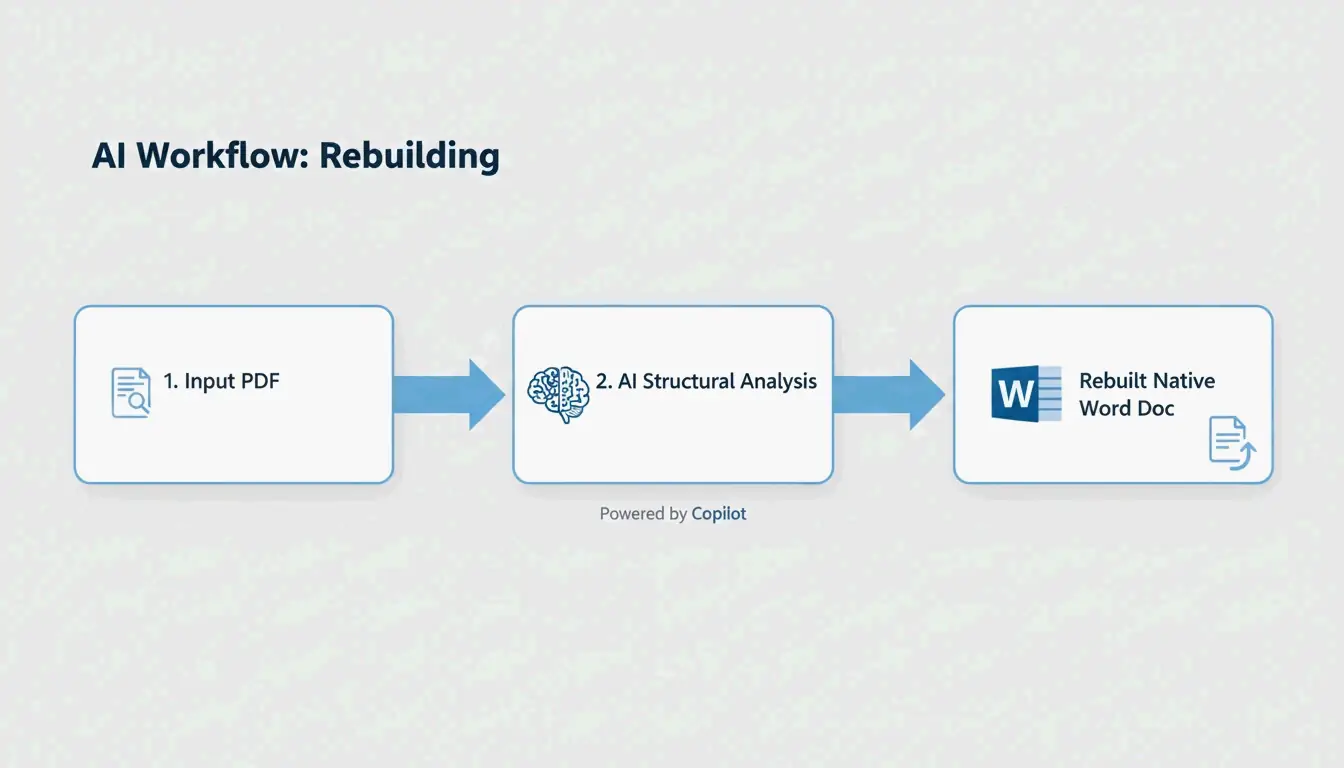
- أرفق ملف PDF في محادثة Copilot داخل Word.
- يحلل Copilot البنية ويعيد بناء المستند بعناوين وقوائم منظمة.
- استخدم أوامر اللغة الطبيعية لتنظيف آثار التحويل.
أوامر التنظيف الفعالة:
- “حدد وأصلح فواصل الأسطر المكسورة والنص المكرر، مع إضافة نقاط وعناوين.”
- “راجع هذا المستند واقترح تحسينات على بنية العناوين وتنسيق الجداول لتحسين إمكانية الوصول.”
- “حدد واقترح تصحيحات للمسافات والخطوط غير المتساوية أو ترقيم القوائم غير الصحيح.”
تقدم Microsoft معالجة سحابية “Zero-Knowledge” لمستخدمي المؤسسات — تبقى المستندات السرية داخل بيئة مؤسستك الآمنة.
الطريقة 3: Adobe Acrobat Pro — الجداول والتخطيطات المعقدة
يظل Adobe Acrobat Pro المعيار الصناعي لملفات PDF ذات الهياكل المعقدة. يحافظ محرك تحليل التخطيط الخاص به على الحدود ومحاذاة الخلايا والتنسيق متعدد الأعمدة. التعيين إلى .docx عبر Acrobat يتعامل مع الرسومات والجداول المتداخلة بشكل أفضل من البدائل المجانية.
الطريقة 4: OCR للمستندات الممسوحة ضوئيًا
لا يمكن للتحويل القياسي استخراج النص من ملفات PDF القائمة على الصور. يُطلب OCR (التعرف البصري على الأحرف)، وتعتمد الجودة على دقة المسح.
| جودة المسح | DPI | دقة OCR | حالة الاستخدام |
|---|---|---|---|
| منخفضة | 150 DPI | ~90% | استخراج سريع للنص |
| احترافية | 300 DPI | ~99% | المستندات القانونية والطبية |
| عالية | 600 DPI | 99%+ | المستندات الأرشيفية، الطباعة الدقيقة |
وفقًا لـ PDNob، تحقق محركات OCR المدعومة بالذكاء الاصطناعي في 2026 دقة 99% عند 300 DPI. يقدم PDNob PDF Editor معالجة دفعية — طبق نفس إعدادات OCR على عشرات الفواتير أو العقود في وقت واحد.
الطريقة 5: Google Docs — OCR أساسي مجاني
ارفع ملف PDF إلى Google Drive، وانقر بزر الماوس الأيمن → “فتح باستخدام” → Google Docs. تعمل عملية OCR مدمجة على تحويل نص الصورة إلى محتوى قابل للتعديل.
القيود: غالبًا ما يفشل Google Docs في مطابقة الخطوط الأصلية ويُزاحم الصور داخل سطور النص. كافٍ لاستخراج نص عادي من صفحات بسيطة؛ غير كافٍ للمستندات ذات العلامة التجارية أو جداول البيانات المعقدة.
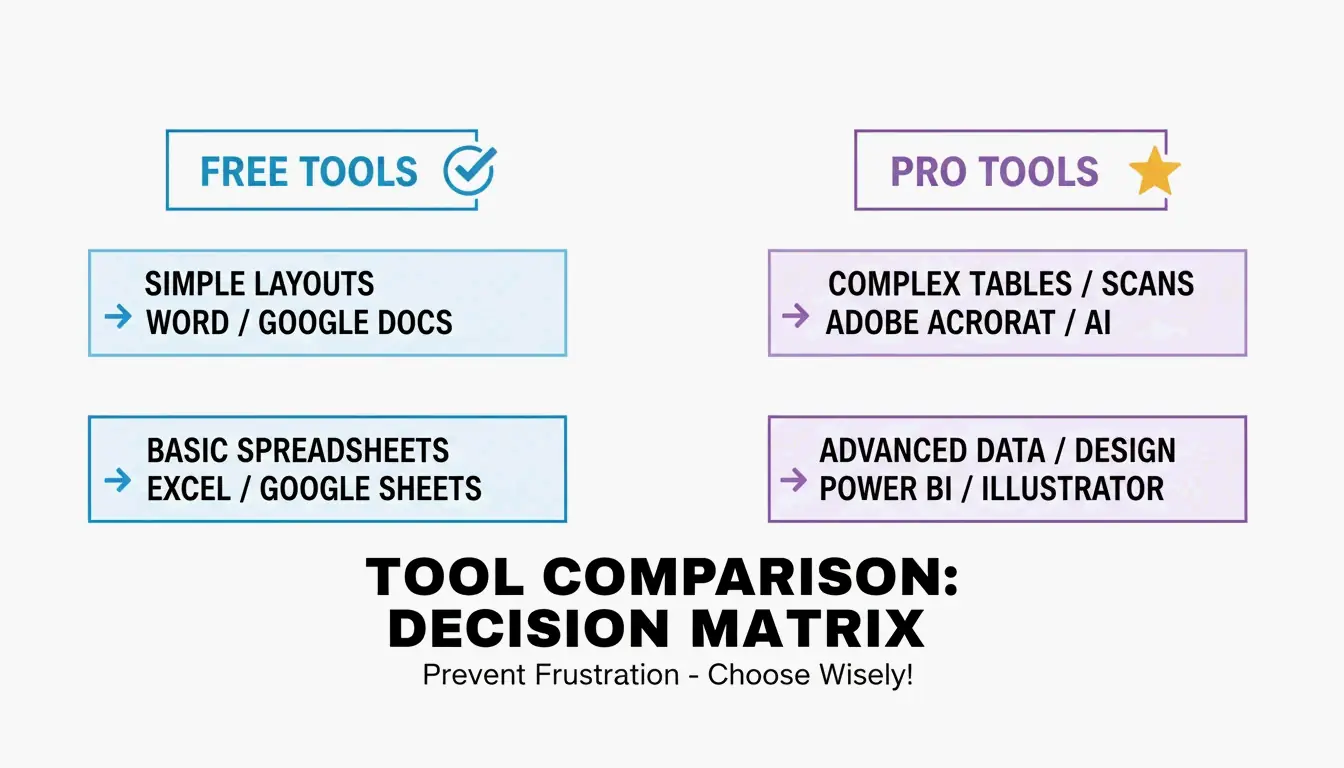
ملخص مقارنة الأدوات
| الأداة | التكلفة | الأفضل لـ | OCR | معالجة دفعية | الخصوصية |
|---|---|---|---|---|---|
| Microsoft Word | مجاني | ملفات PDF الأصلية البسيطة | لا | لا | محلي |
| Microsoft Copilot | اشتراك | إعادة البناء بالذكاء الاصطناعي | لا | لا | Zero-Knowledge |
| Adobe Acrobat Pro | مدفوع | جداول وتخطيطات معقدة | نعم (Pro) | نعم | محلي/سحابي |
| PDNob PDF Editor | Freemium | OCR دفعي ممسوح ضوئيًا | نعم (ذكاء اصطناعي) | نعم | محلي |
| Google Docs | مجاني | استخراج سريع للنص | أساسي | لا | سحابي |
الخلاصة
طابق الأداة مع نوع PDF: Word للمستندات الأصلية، وAdobe Acrobat Pro للتخطيطات المعقدة، وOCR المدعوم بالذكاء الاصطناعي (PDNob، Copilot) للملفات الممسوحة ضوئيًا. للحصول على نتائج احترافية في المستندات الممسوحة ضوئيًا، تأكد من أن المصدر لا يقل عن 300 DPI. احفظ دائمًا الملف المحول بصيغة .docx فورًا للخروج من وضع التوافق وفتح جميع إمكانيات التحرير.
الأسئلة الشائعة
هل يمكنني تحويل PDF إلى Word مجانًا دون فقدان التنسيق؟
ملفات PDF الأصلية الغنية بالنص تتحول بشكل جيد باستخدام Word للويب أو Google Docs. التخطيطات المعقدة ذات الجداول المتداخلة تتطلب Adobe Acrobat أو أدوات إعادة البناء بالذكاء الاصطناعي للحفاظ على البنية. تفتقر الأدوات المجانية إلى محركات OCR المتقدمة اللازمة لتفسير العلاقات المكانية في المستندات المعقدة.
هل من الآمن استخدام محولات PDF عبر الإنترنت للمستندات الحساسة؟
تعتمد الأمان على مزود الخدمة. ابحث عن معالجة سحابية “Zero-Knowledge” (Microsoft Copilot للمؤسسات) أو استخدم برامج سطح المكتب المحلية (Adobe Acrobat Pro، PDNob) للملفات القانونية والطبية. تحقق من توافق SOC2 وملصقات خصوصية بيانات الذكاء الاصطناعي قبل رفع المحتوى الحساس.
كيف يحسن الذكاء الاصطناعي تحويل PDF إلى Word؟
أدوات الذكاء الاصطناعي مثل Copilot تفهم بنية المستند بما يتجاوز التعرف على الأحرف — فهي تتعرف على الرؤوس والتذييلات والأنماط والتدرجات الهرمية للجداول التي تقوم المحولات التقليدية بتسطيحها. تتيح لك أوامر اللغة الطبيعية إصلاح أخطاء تنسيق محددة (فواصل أسطر مكسورة، خطوط غير متسقة) دون تحرير يدوي.
SectoJoy
• Indie Hacker & DeveloperI'm an indie hacker building iOS and web applications, with a focus on creating practical SaaS products. I specialize in AI SEO, constantly exploring how intelligent technologies can drive sustainable growth and efficiency.