How to Convert PDF to Word: 2026 Methods Ranked by Accuracy
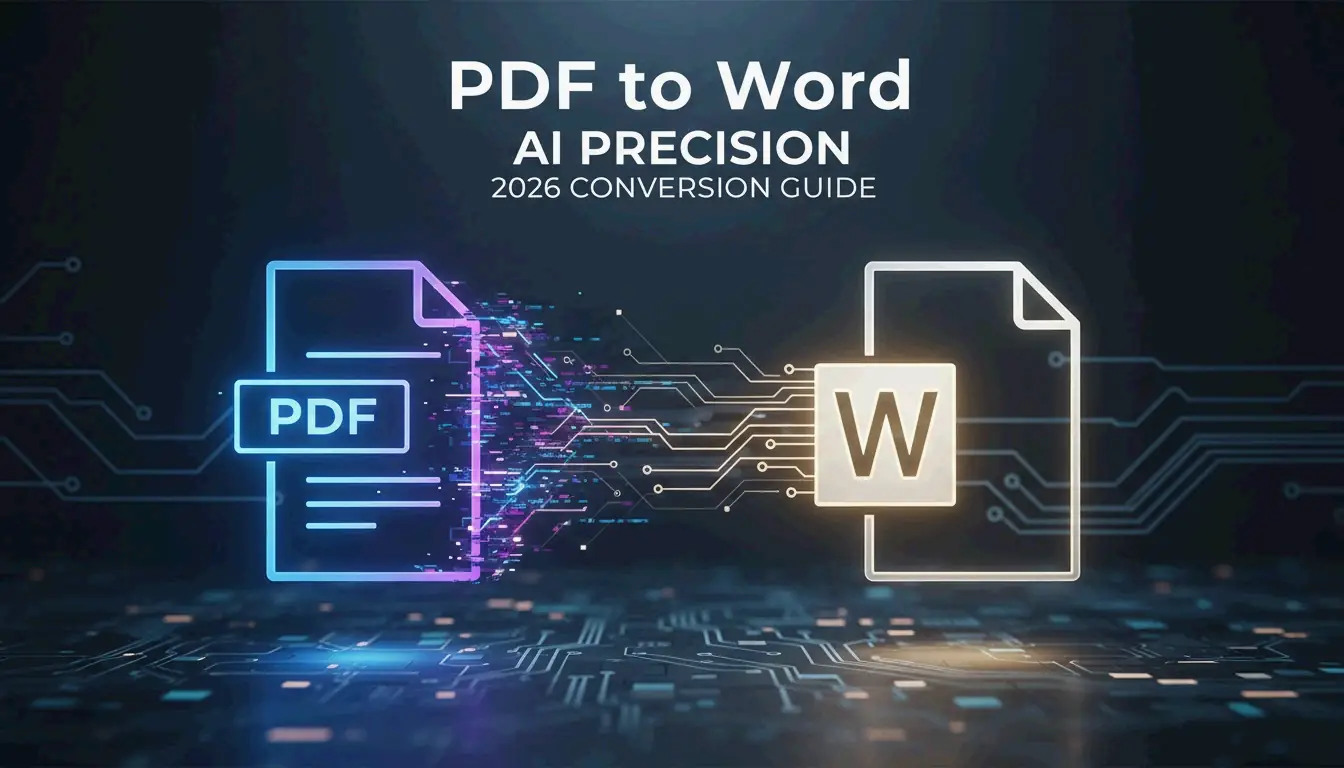
Use Microsoft Word for simple digital PDFs, Adobe Acrobat Pro for complex layouts with tables, or AI-powered tools (Copilot, PDNob) for scanned documents. The right method depends on whether your PDF is Native (selectable text), Scanned (image of text), or requires AI rebuilding.
Decision Framework: Match PDF Type to Tool

| PDF Type | Characteristics | Best Tool | Expected Accuracy |
|---|---|---|---|
| Native | Selectable text, digital origin | Microsoft Word (free) | ~95% |
| Scanned | Image-based, no selectable text | PDNob / Adobe Acrobat (OCR) | Up to 99% |
| Complex layout | Nested tables, multi-column, graphics | Adobe Acrobat Pro | ~98% |
| AI-rebuild needed | Mixed content, broken formatting | Microsoft Copilot | ~97% |
Method 1: Microsoft Word — Best for Native PDFs
For digitally-created PDFs with simple layouts, Microsoft Word is the fastest free option.
Desktop: Right-click the PDF → “Open with” → Microsoft Word.
Web: Open Word for the Web, go to “Open,” select your PDF. Word converts columns, spacing, and line breaks into editable text.
Important: Word often opens converted files in “Compatibility Mode,” which blocks advanced editing features. Microsoft’s editorial team recommends saving immediately as .docx to unlock all formatting tools.
Method 2: Microsoft Copilot — AI Document Rebuilding
The 2026 shift is from reflowing text to rebuilding it. Copilot uses AI to understand document context — recognizing headers, footers, nested tables, and style hierarchies that traditional converters flatten.
Workflow:
- Attach the PDF to a Copilot chat in Word.
- Copilot analyzes structure and rebuilds the document with organized headings and lists.
- Use natural language prompts to clean up conversion artifacts.

Cleanup prompts that work:
- “Identify and fix broken line breaks and duplicated text, while adding bullet points and headings.”
- “Review this document and suggest improvements to heading structure and table formatting for accessibility.”
- “Identify and suggest corrections for spacing, uneven fonts, or incorrect list numbering.”
Microsoft offers “Zero-Knowledge” cloud processing for enterprise users — confidential documents stay within your organization’s secure environment.
Method 3: Adobe Acrobat Pro — Complex Tables and Layouts
Adobe Acrobat Pro remains the industry standard for PDFs with complicated structures. Its layout-aware engine preserves borders, cell alignments, and multi-column formatting. Export to .docx through Acrobat handles graphics and nested tables better than free alternatives.
Method 4: OCR for Scanned Documents
Standard conversion cannot extract text from image-based PDFs. OCR (Optical Character Recognition) is required, and quality depends on scan resolution.
| Scan Quality | DPI | OCR Accuracy | Use Case |
|---|---|---|---|
| Low | 150 DPI | ~90% | Quick text extraction |
| Professional | 300 DPI | ~99% | Legal, medical documents |
| High | 600 DPI | 99%+ | Archival, fine print |
According to PDNob, AI-driven OCR engines in 2026 achieve 99% precision at 300 DPI. PDNob PDF Editor offers batch processing — apply the same OCR settings to dozens of invoices or contracts at once.
Method 5: Google Docs — Free Basic OCR
Upload the PDF to Google Drive, right-click → “Open with” → Google Docs. A built-in OCR process converts image text to editable content.
Limitations: Google Docs frequently fails to match original fonts and displaces images into text lines. Adequate for extracting plain text from simple pages; insufficient for branded documents or complex data tables.

Tool Comparison Summary
| Tool | Cost | Best For | OCR | Batch | Privacy |
|---|---|---|---|---|---|
| Microsoft Word | Free | Simple native PDFs | No | No | Local |
| Microsoft Copilot | Subscription | AI rebuilding | No | No | Zero-Knowledge |
| Adobe Acrobat Pro | Paid | Complex tables, layouts | Yes (Pro) | Yes | Local/Cloud |
| PDNob PDF Editor | Freemium | Scanned batch OCR | Yes (AI) | Yes | Local |
| Google Docs | Free | Quick text extraction | Basic | No | Cloud |
Conclusion
Match the tool to the PDF type: Word for native documents, Adobe Acrobat Pro for complex layouts, and AI-powered OCR (PDNob, Copilot) for scanned files. For professional results on scanned documents, ensure the source is at least 300 DPI. Always save the converted file as .docx immediately to exit Compatibility Mode and unlock full editing capabilities.
FAQ
Can I convert PDF to Word for free without losing formatting?
Text-heavy native PDFs convert well with Word for the Web or Google Docs. Complex layouts with nested tables require Adobe Acrobat or AI-rebuilding tools to preserve structure. Free tools lack the advanced OCR engines needed to interpret spatial relationships in complex documents.
Is it safe to use online PDF converters for sensitive documents?
Security depends on the provider. Look for “Zero-Knowledge” cloud processing (Microsoft Copilot enterprise) or use local desktop software (Adobe Acrobat Pro, PDNob) for legal and medical files. Verify SOC2 compliance and AI data privacy labels before uploading sensitive content.
How does AI improve PDF to Word conversion?
AI tools like Copilot understand document structure beyond character recognition — they identify headers, footers, styles, and table hierarchies that traditional converters flatten. Natural language prompts let you fix specific formatting errors (broken line breaks, inconsistent fonts) without manual editing.
SectoJoy
• Indie Hacker & DeveloperI'm an indie hacker building iOS and web applications, with a focus on creating practical SaaS products. I specialize in AI SEO, constantly exploring how intelligent technologies can drive sustainable growth and efficiency.